Transactions Reports
📊 Transactions Overview
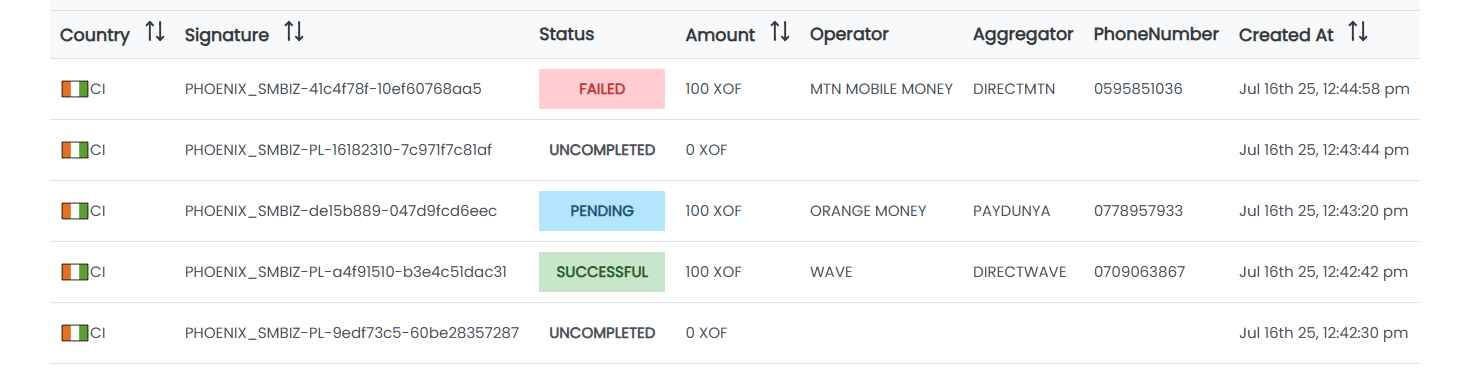
This table provides a comprehensive overview of all transactions processed through the system. It includes details such as the :
-
country : the country where the transaction took place
-
signature : the unique identifier for the transaction
-
status : the current status of the transaction (e.g., PENDING, SUCCESSFUL, FAILED)
-
amount : the total amount of the transaction
-
operator : the operator handling the transaction
-
aggregator : the aggregator facilitating the transaction
-
phone number : the phone number associated with the transaction
-
creation at : the date when the transaction was created
What are features?
🔍 Search Transactions
There are two types of modes for searching transactions. You can switch between modes depending on your needs.
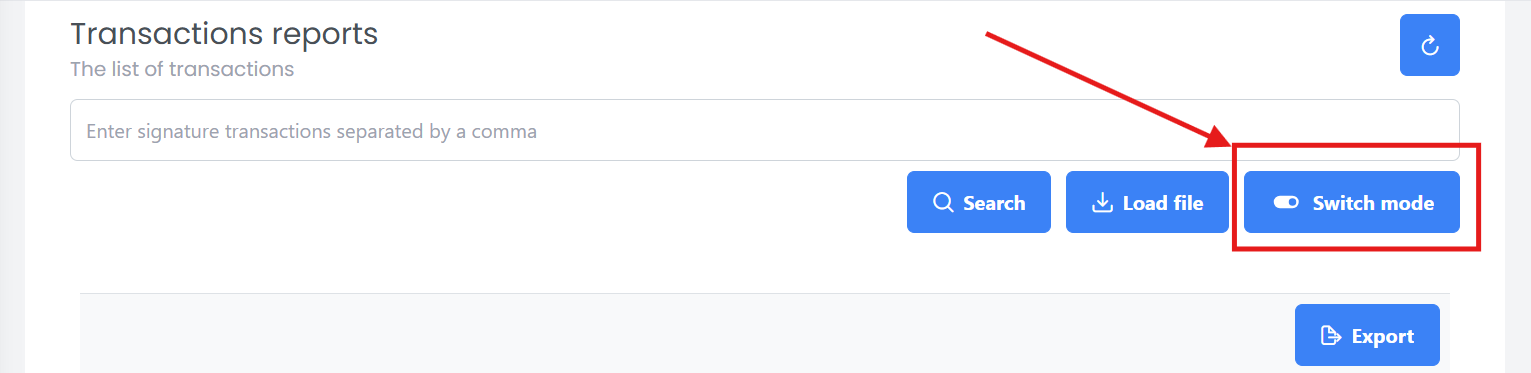
1. Search by Signature only
- Enter the transaction signature in the search bar.
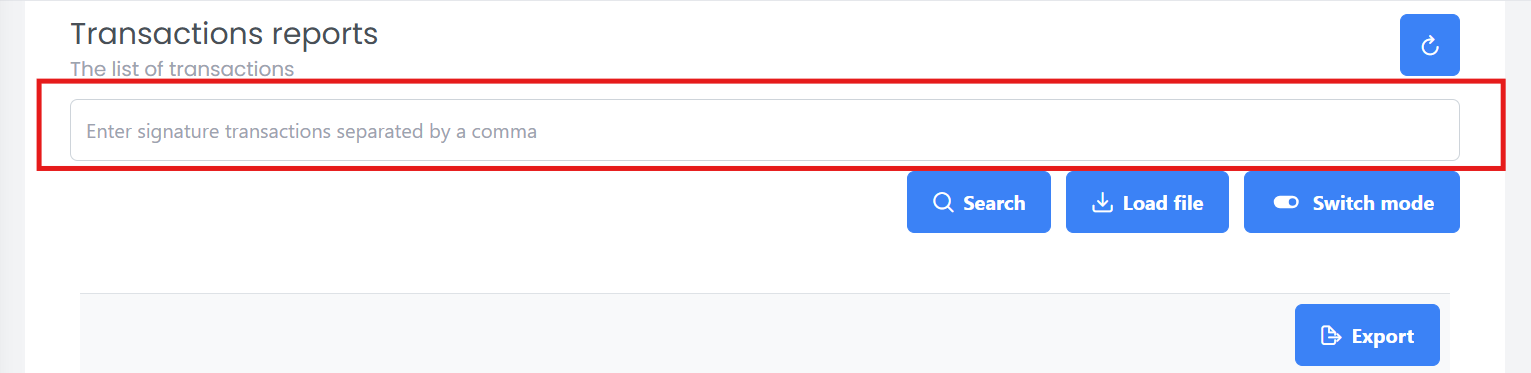
- Click the Search button to filter transactions by signature.

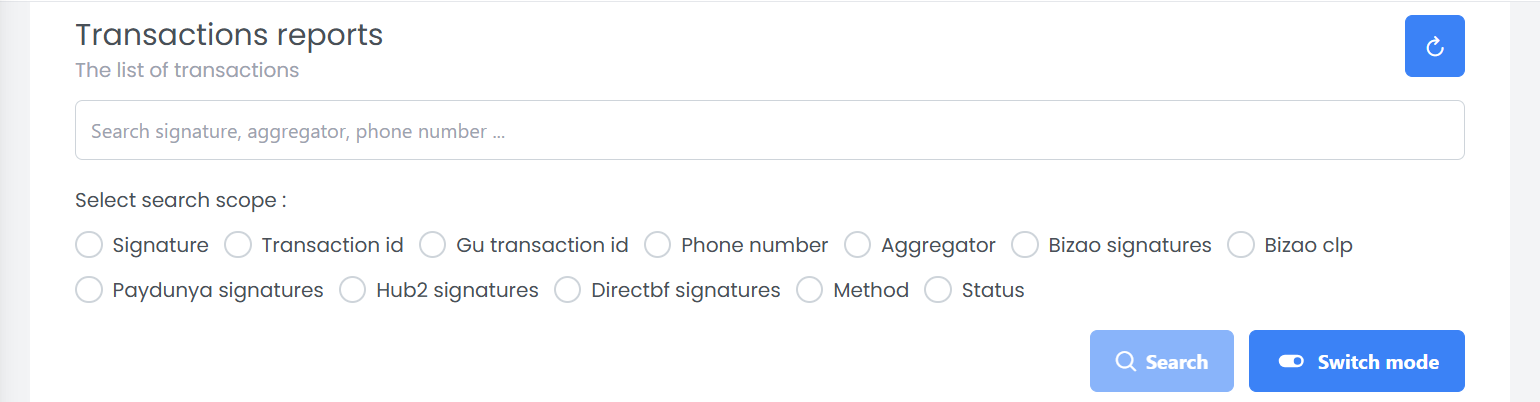
2. Search by Other Criteria
Enter the search criteria in the form field and then select one of the radio buttons to perform the search by clicking the Search button.
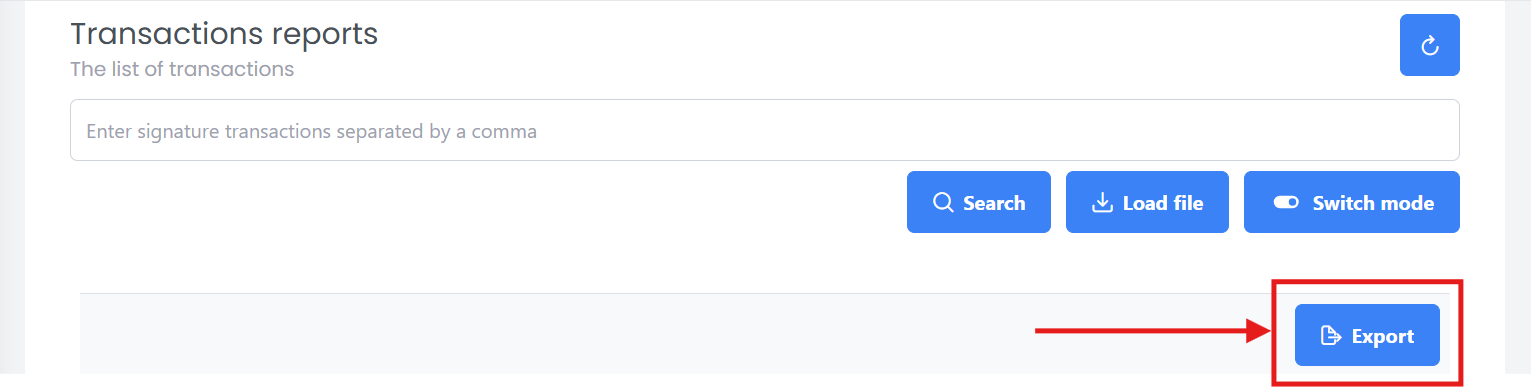
💾 Export Transactions
You can export the transaction data in various formats for further analysis or reporting. To do this, follow these steps:
-
Apply any necessary filters to the transaction data.
-
Click the 🗂️ Export button.
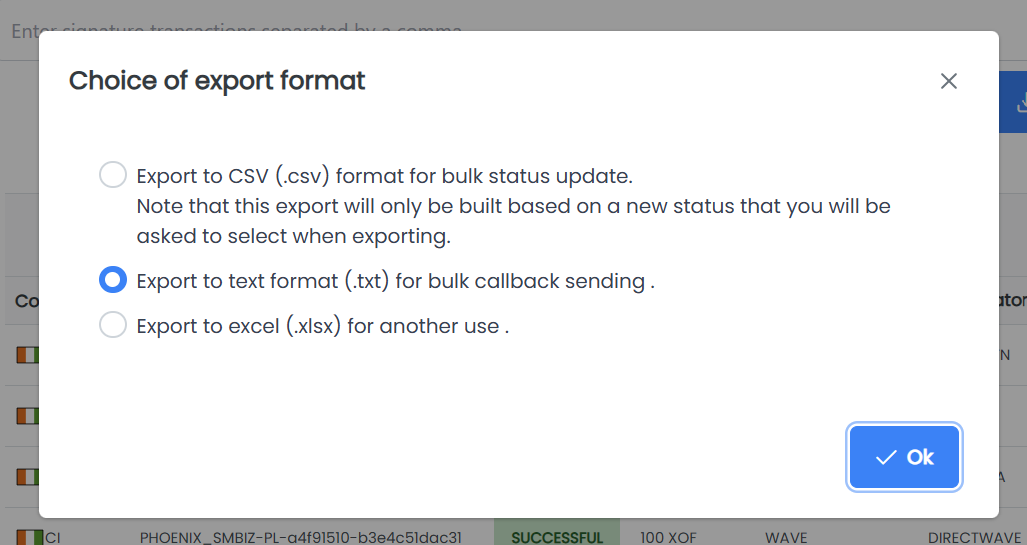
- Select the desired export format and click OK.
🔁 Update transactions status
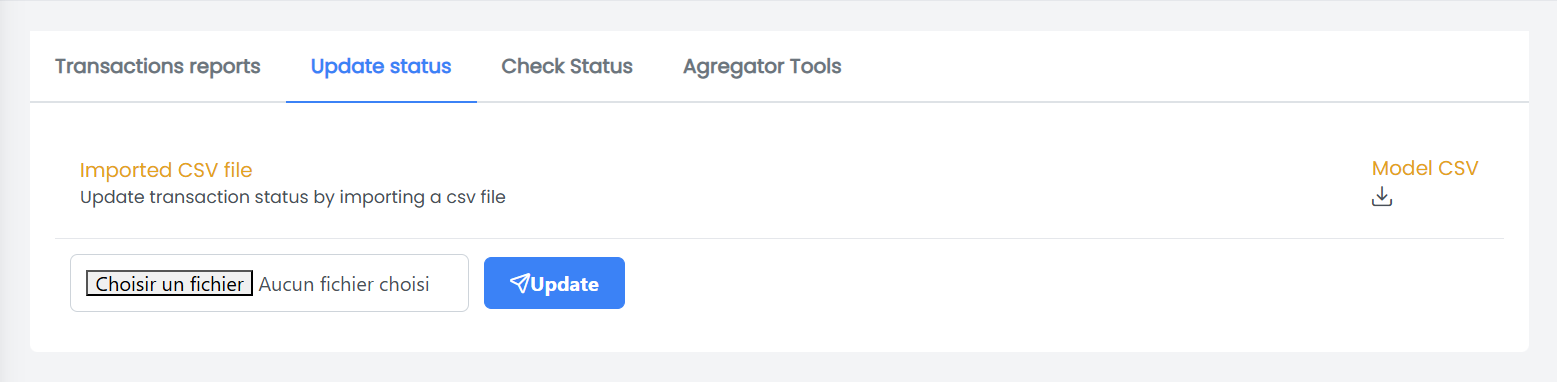
You can update the status of a transaction following these steps:
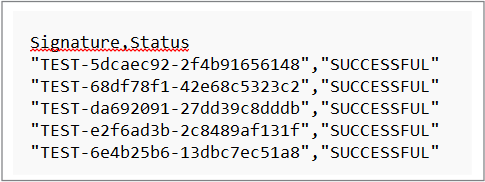
- Please import the transactions file in CSV format.
The CSV file should contain the following columns:
-
Signature: The unique identifier for the transaction
-
Status: The new status you want to set for the transaction (e.g., PENDING, SUCCESSFUL, FAILED)
- Click the Update button.
✔️ Check Transactions Status
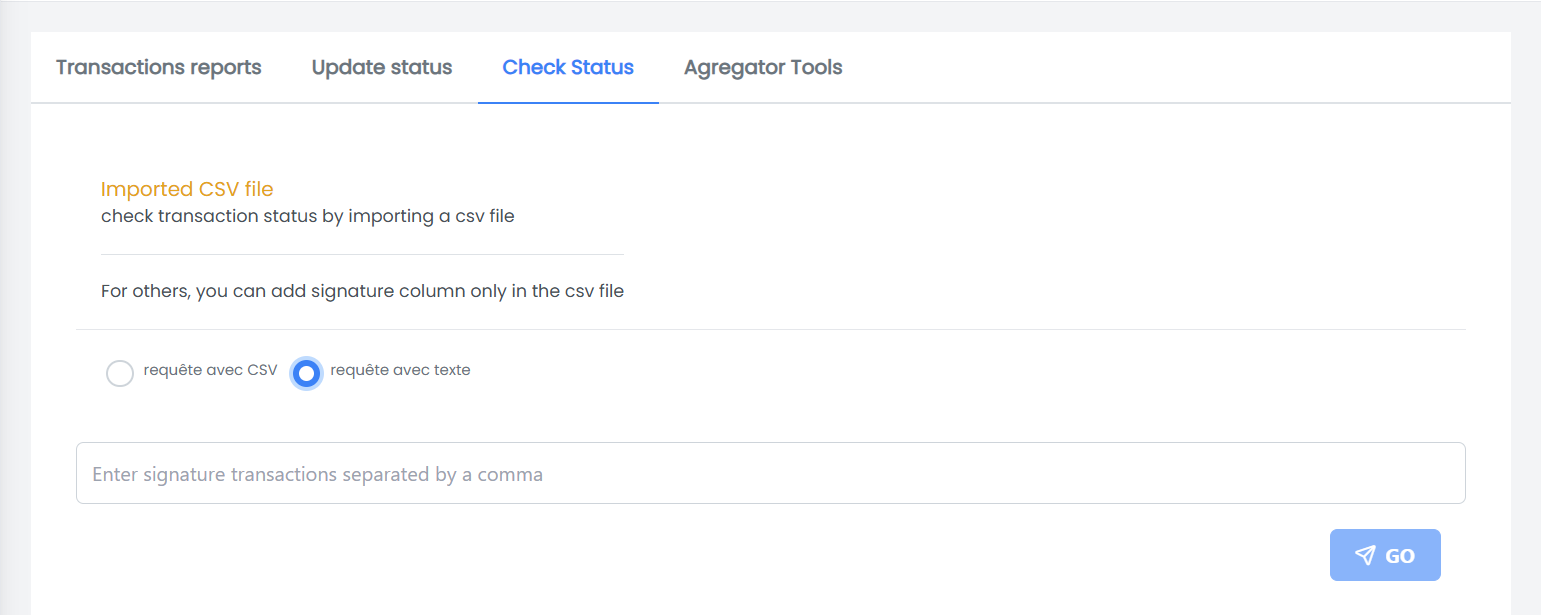
You can check the status of transaction for a specific signature by following these steps:
- Enter the transaction signature in the search bar and click on 🚀 Go button.
- Or import the transactions file in CSV format and click on 🚀 Go button.
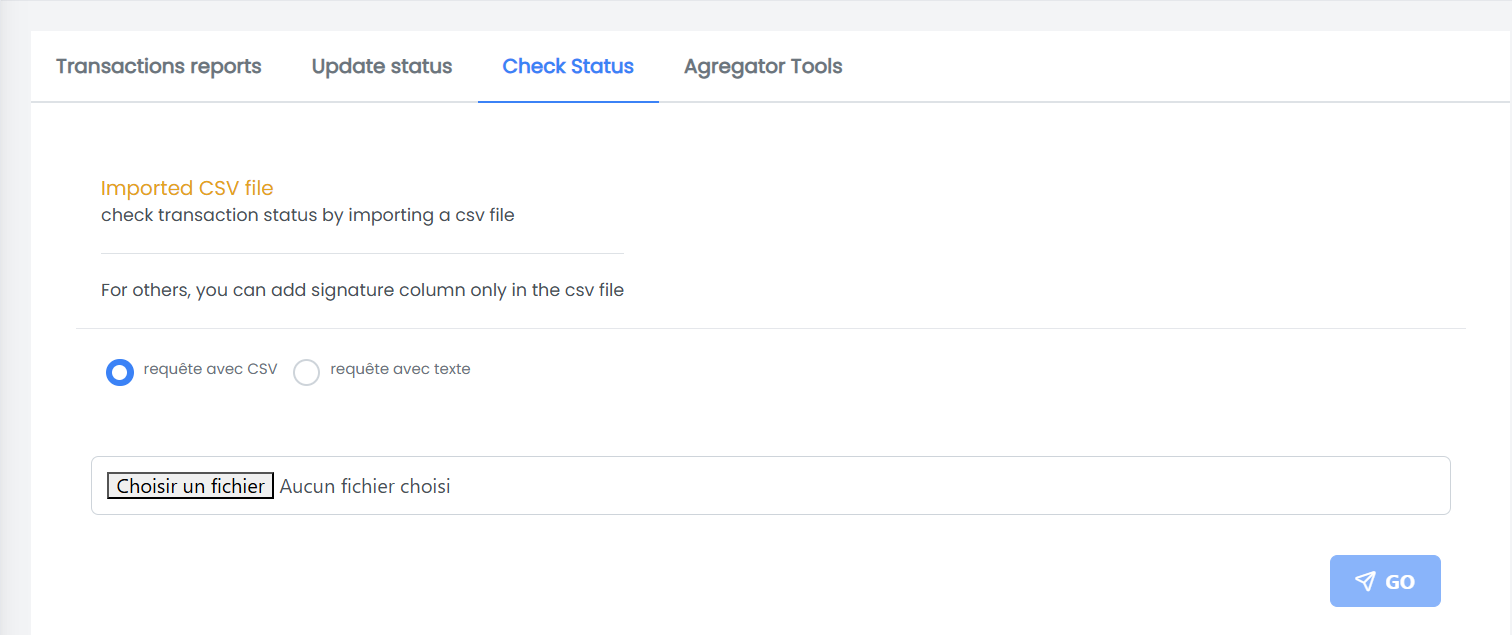
The CSV file should contain signature column:
- Signature: The unique identifier for the transaction

Was this page helpful?