📊 Aggregator Monitoring
⇄ Activation
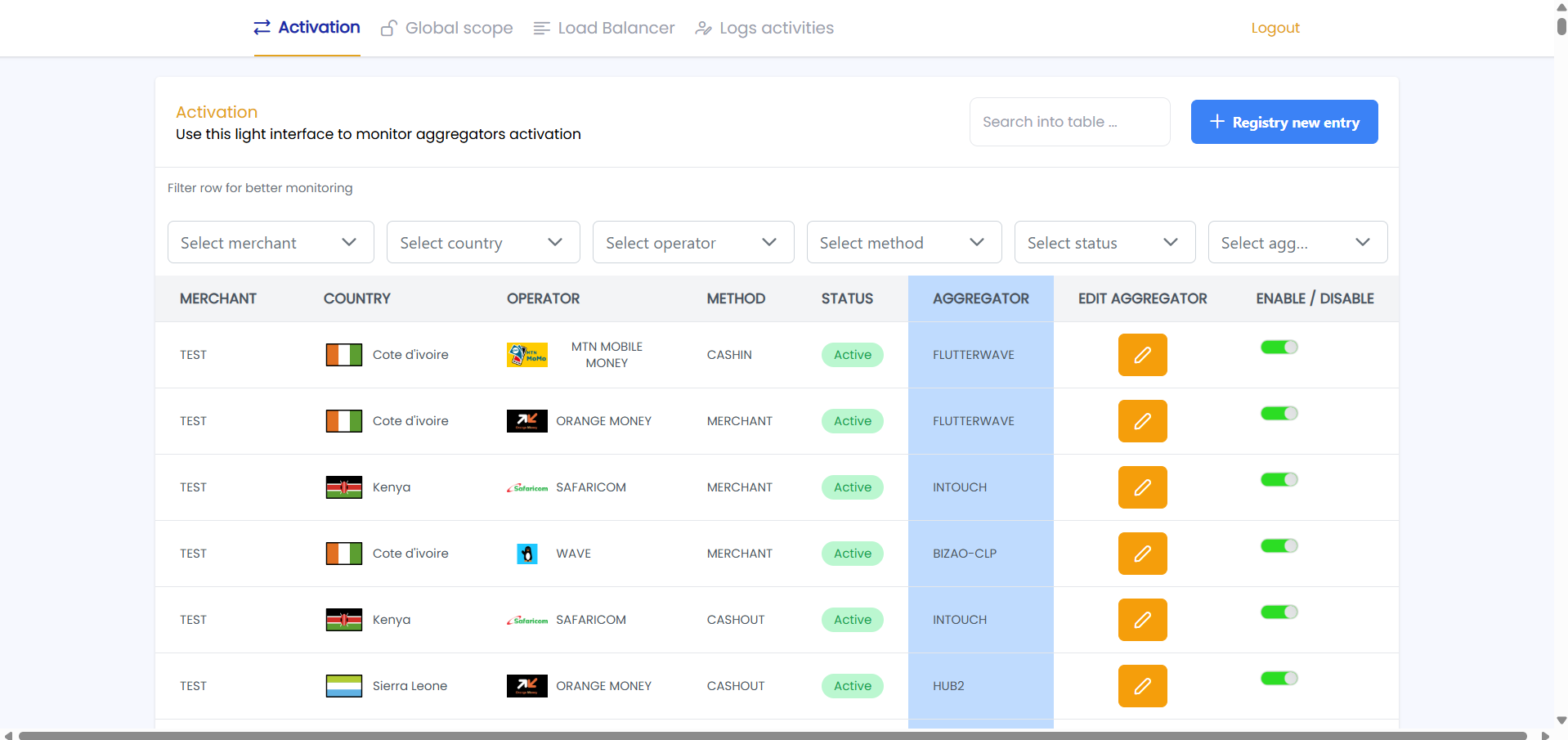
This table shows a list of merchants organised by country, aggregator, associated operator, payment method, status and action buttons. Each row of the table contains data in specific columns.
-
MERCHANT: The merchant associated with the aggregator
-
COUNTRY: The country in which the merchant operates
-
OPERATOR: The operator available in that country
-
METHOD: The payment method (CASHIN, MERCHANT, CASHOUT)
-
STATUS: The current status (Active or Disabled)
-
AGGREGATOR: The aggregator that will be associated with the merchant for the various transactions
What are features ?
Change Aggregator
You can change the aggregator for a specific row by clicking on the orange button.
Next, a modal window will appear, allowing you to select a new aggregator from a dropdown list.
Finally, confirm your selection by clicking on the update Aggregator.
Change Status
You can change the status of a specific row by clicking on the switch green button.
Register a new entry
-
Click on the
Registry a new entrybutton.
-
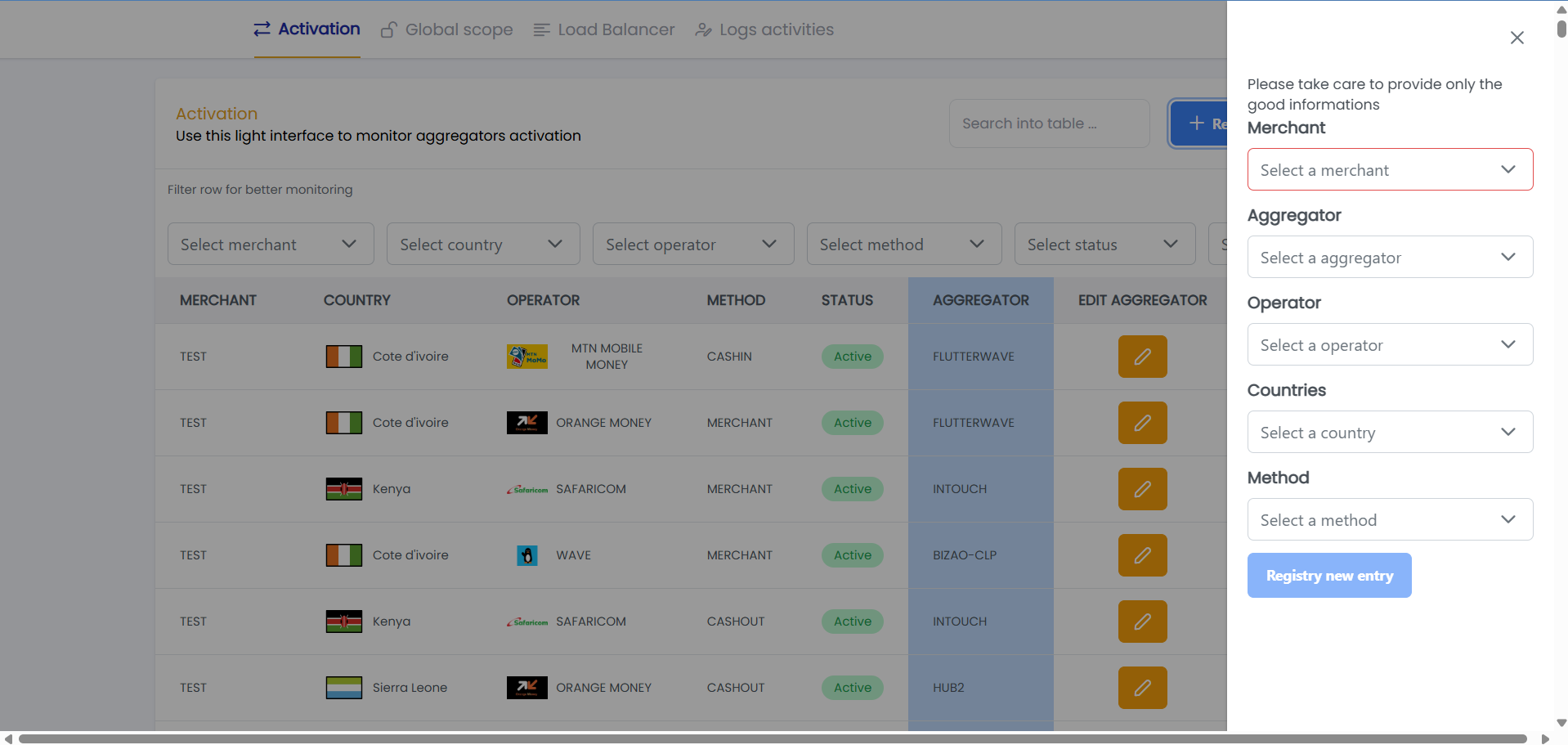
A modal window will appear, allowing you to select the following parameters:
- Merchant: Select the merchant from the dropdown list.
- Aggregator: Select the aggregator from the dropdown list.
- Operator: Select the operator available in that country.
- Country: Choose the country from the dropdown list.
- Method: Choose the payment method (CASHIN, MERCHANT, CASHOUT).
- After filling in the required fields, click on the
Registry new entrybutton to save the new entry.
Filter search
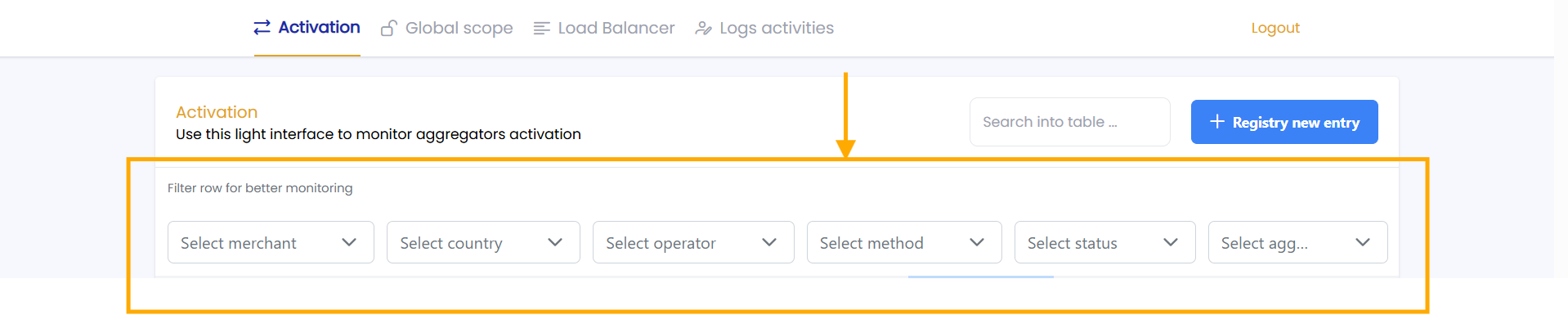
You can filter the table using the search bar and the various drop-down menus at the top of the interface.
🔓 Global scope
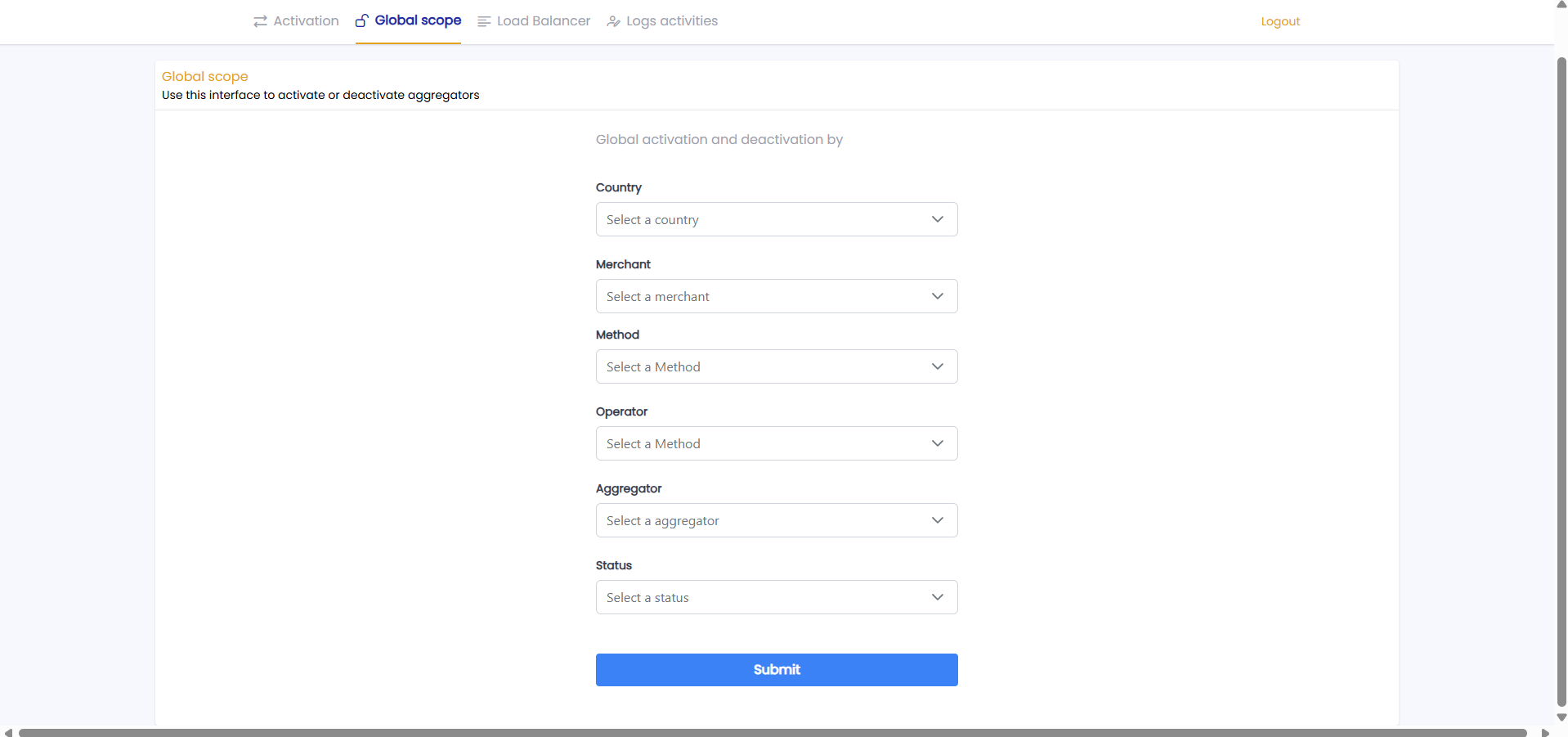
This Global scope interface allows you to deactivate or activate several lines in the table at once.
For example, imagine that you want to deactivate 90 lines in the table that are associated with the same country, merchant and aggregator. Clearly, this work cannot be done manually if you have thousands of lines in the table, which is why this feature is so useful.
To do this, complete the form according to the desired outcome and then click the Submit button.
☰ Load Balancer
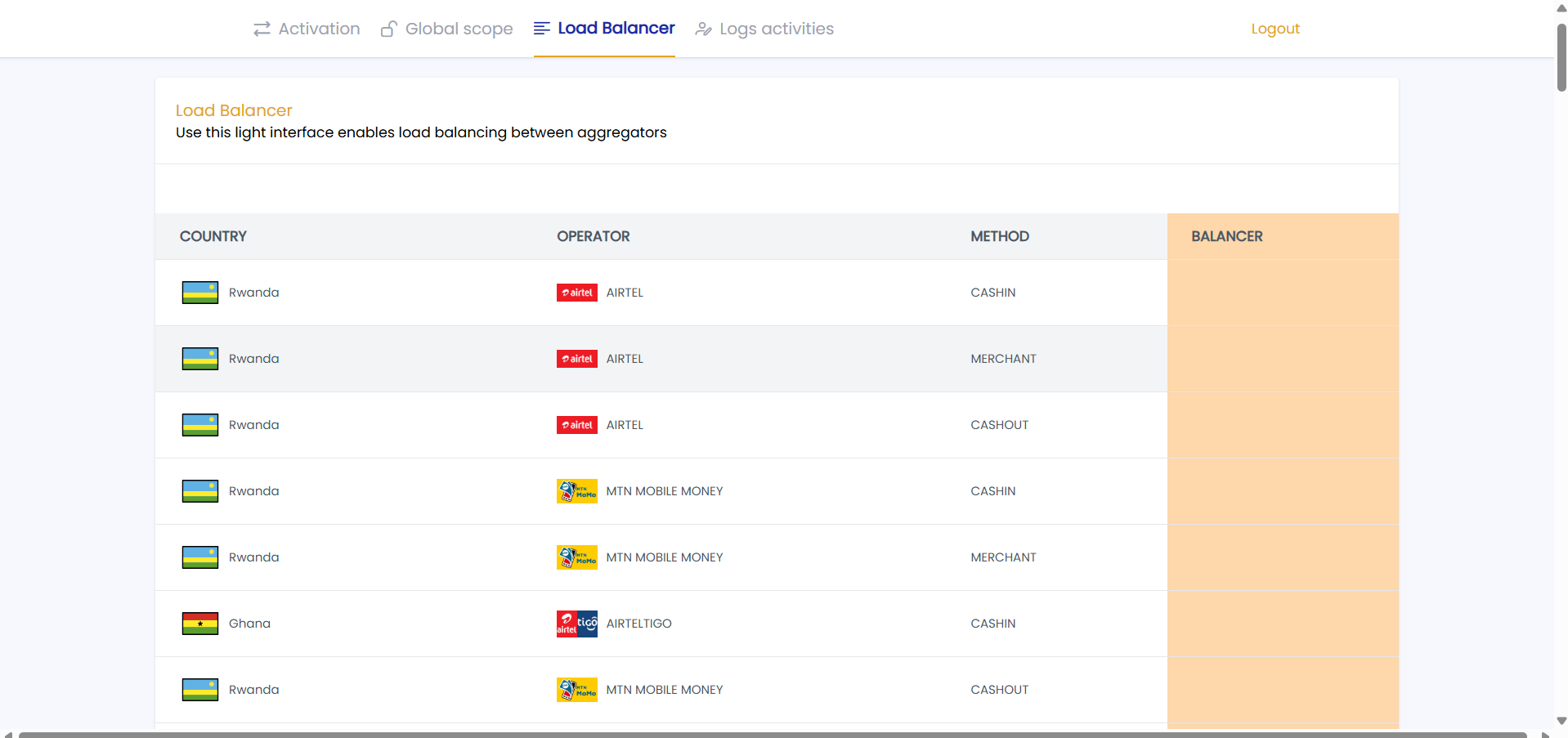
The Load Balancer interface allows you to manage the load balancing of your aggregators. You can view the current load on each aggregator and adjust settings as needed.

👤 Logs activities
The Logs activities interface provides a detailed log of all user activities related to aggregator monitoring.
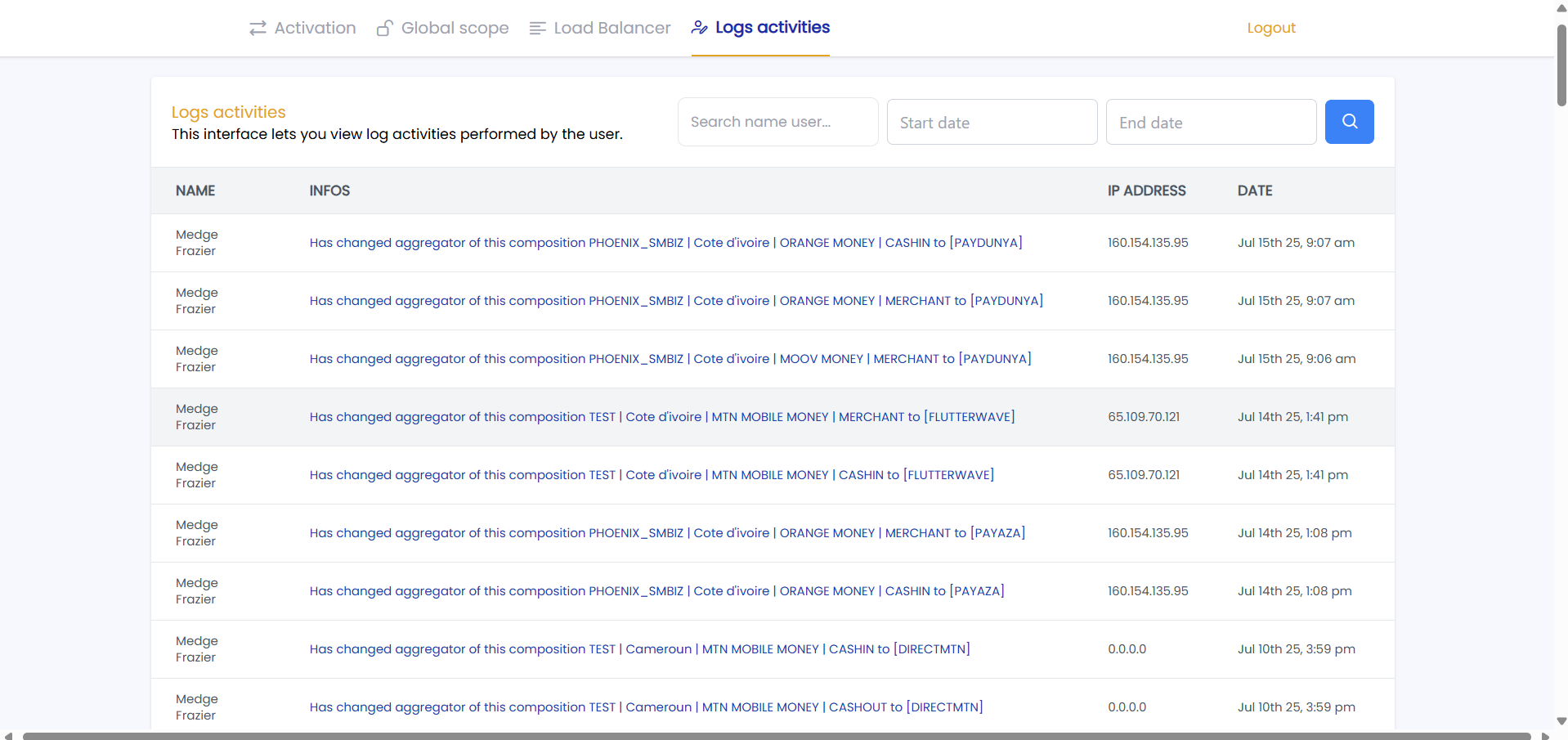
You can filter logs activities by date, and user to find specific entries quickly.

Was this page helpful?