📥 Extractions Requests
Extractions Overview
This table provides a comprehensive overview of all extraction requests made by merchants. It includes details such as:
-
Merchant: the merchant associated with the extraction request
-
Created at: The date and time when the extraction request was created
-
Query: The query used for the extraction request (Start date and End date)
-
Description: A brief description of the extraction request
-
Status: The current status of the extraction request (e.g., Processed)
-
Action: Action buttons to manage the extraction request

You may notice that the first row of the table includes two different buttons, namely:
-
Process : This button allows you to process the extraction request.
-
Delete : This button allows you to delete the extraction request.
When a merchant requests an extraction for potential reconciliation purposes from their dashboard, the request is recorded in this table, as shown in the following image:

After a time jump, we can accept our merchant's extraction request by clicking the Process button, which changes the status to Processed.
The request's status is updated immediately in the merchant's dashboard, enabling them to download the associated CSV file by clicking on the green button in the download column.

What are features?
🔍 Search extraction requests
You can search for extraction requests by choosing the merchant name in this dropdown.

Datas will be automatically filtered based on the selected merchant.
Initiate Extraction Request
To initiate a new extraction request, click on the Initiate an automatic request button.

This will open a form where you can specify the details of the extraction request, including :
- Merchant: The merchant for whom the extraction is being requested.
- Date Range: The start and end dates for the data you want to extract.
- Filters: Any specific filters you want to apply to the data.
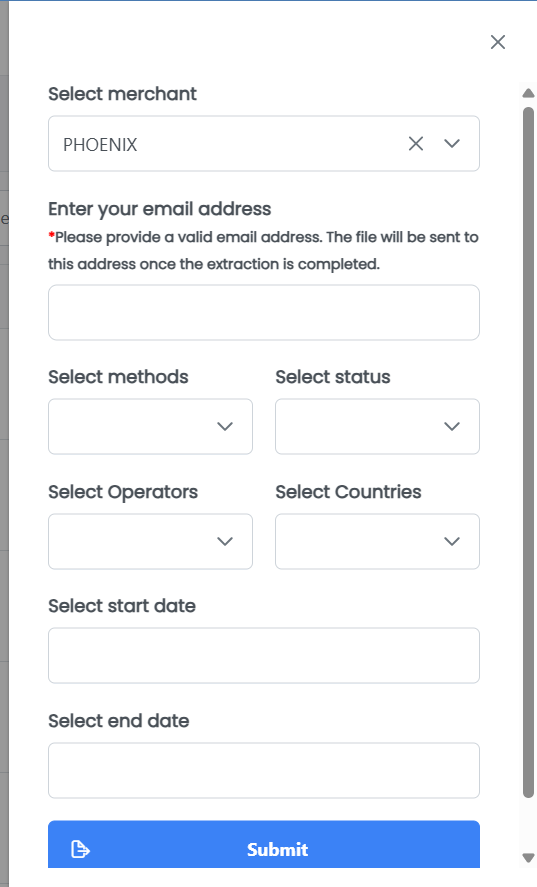
After filling in the required fields, click on the Submit button to create the extraction request.
At this stage, merchants who wish to do so must submit an extraction request.
If merchants are unable to submit their extraction request from their dashboard, they can contact us with the relevant information (as indicated in the form fields).
Once this information has been entered and validated, merchants will receive an email containing the file to download.
Was this page helpful?