Register Deposits
💳 Deposits Overview
This table provides a comprehensive overview of all deposit requests made by merchants. It includes details such as:
-
Country: The country associated with the deposit request
-
Merchant: The merchant associated with the deposit request
-
Amount: The total amount requested for deposit
-
Description: A brief description provided by the merchant for the deposit request
-
Status: The current status of the deposit request (e.g., PENDING, ACCEPTED, REJECTED)
-
Created at: The date and time when the deposit request was created
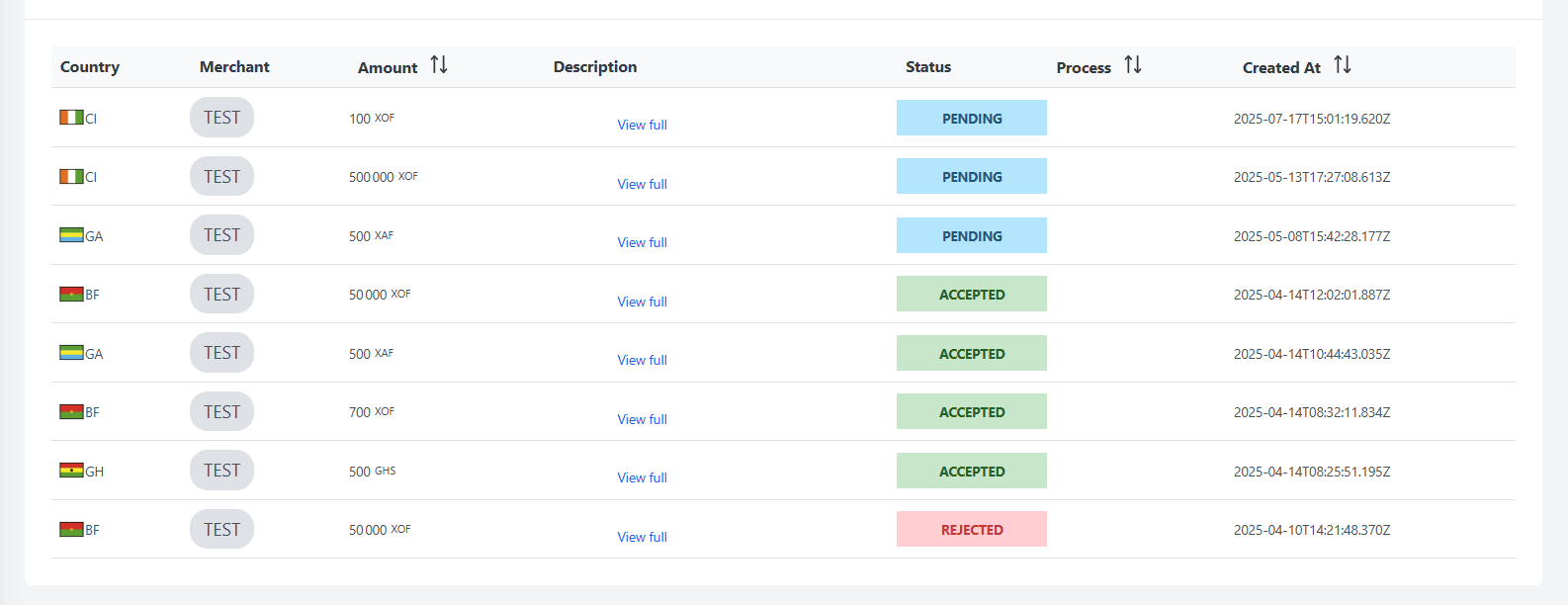
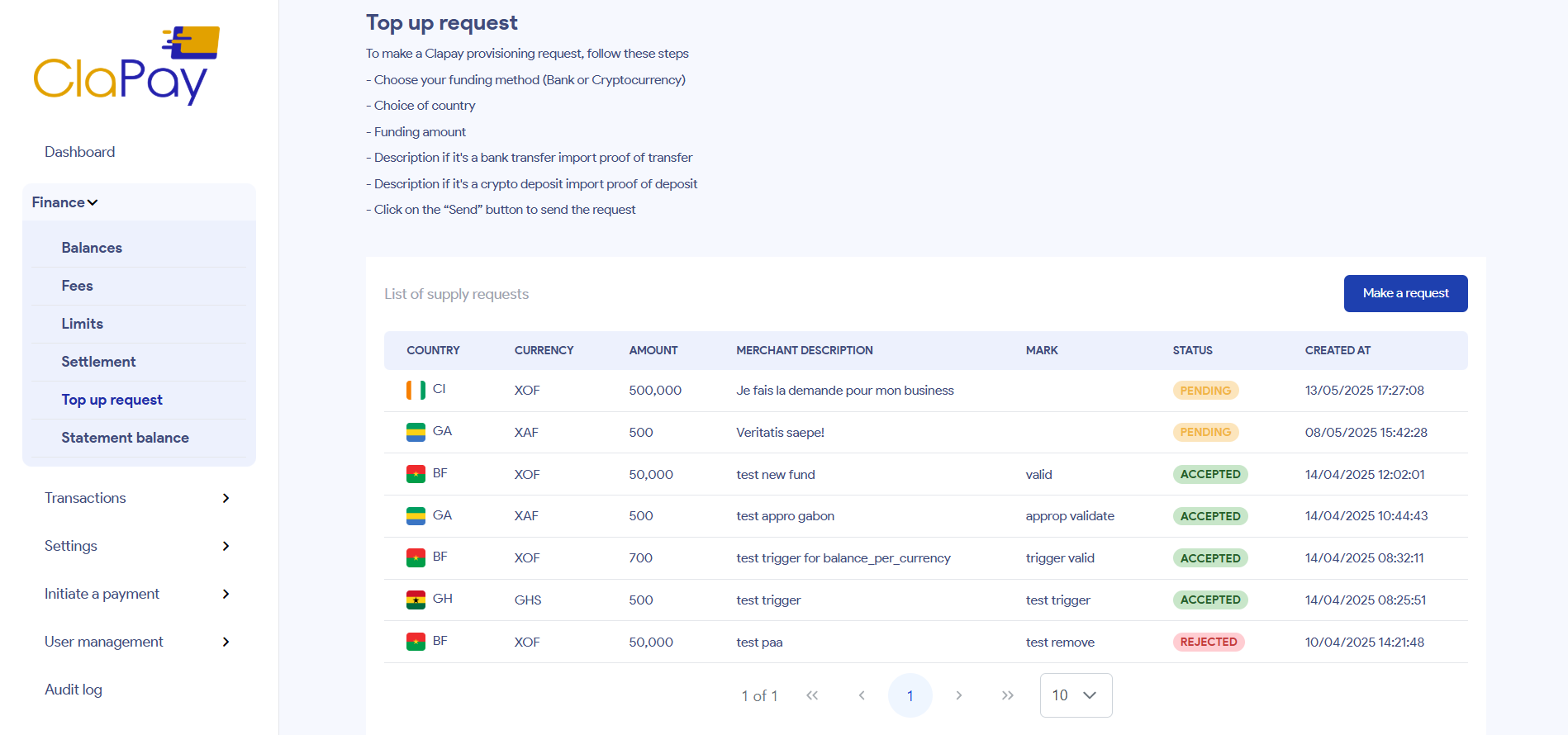
The data in the table above corresponds to a deposit request made by the merchant TEST from their dashboard, as shown in the following image:
What are features?
🔍 Search deposits requests
The search functionality allows you to quickly find specific deposit requests based on various criteria such as:
-
Country: Specify a country to find requests associated with that location.
-
Merchant: Filter requests by the merchant's name.
-
State: Search for requests by their current status (e.g., PENDING, ACCEPTED, REJECTED).

✅ Accept or reject a deposit request
To accept or reject a deposit request, follow these steps:
- Locate the deposit request you want to accept using the search functionality or by browsing the table list.
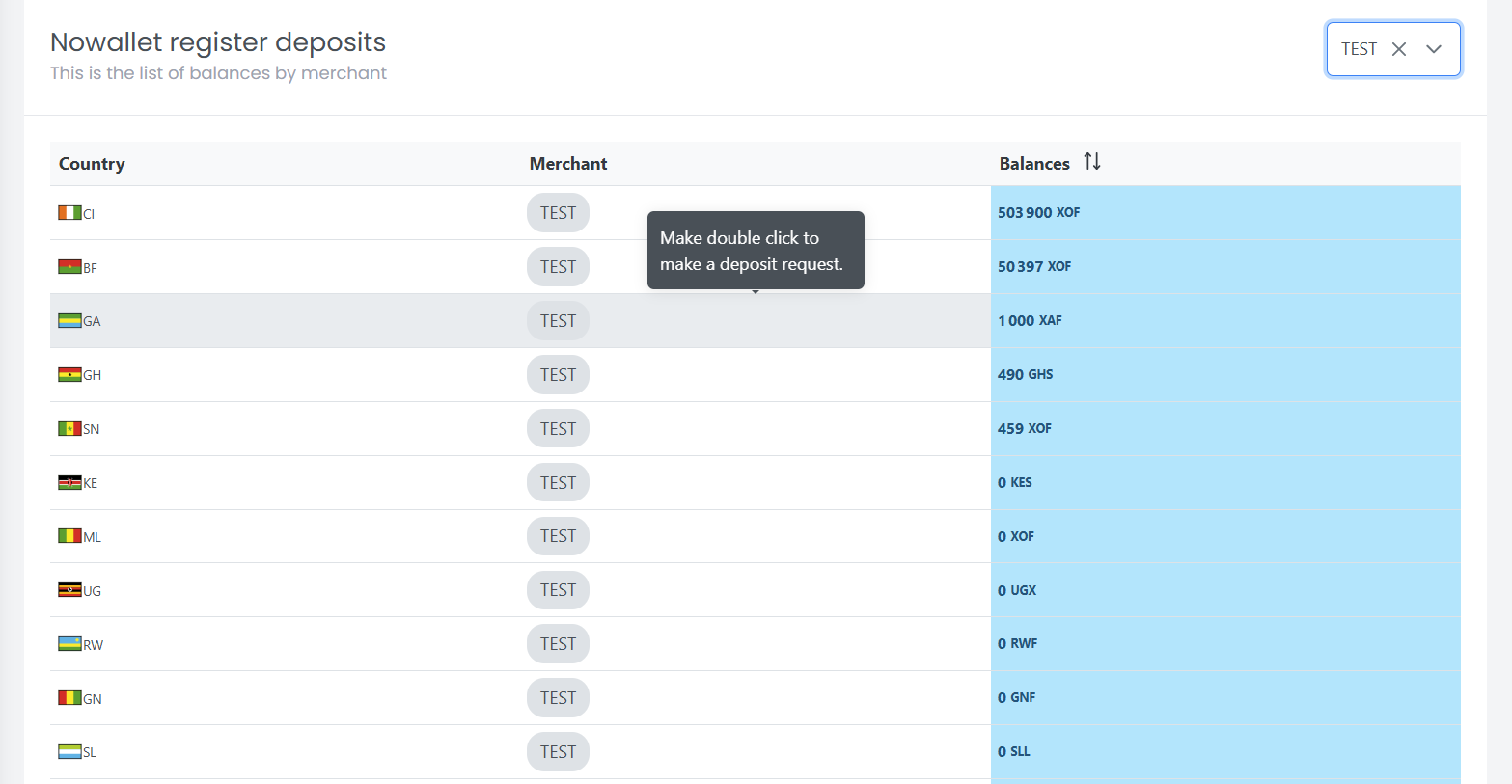
- Make a double click on the row of the request to open form dialog you will use to accept the request.
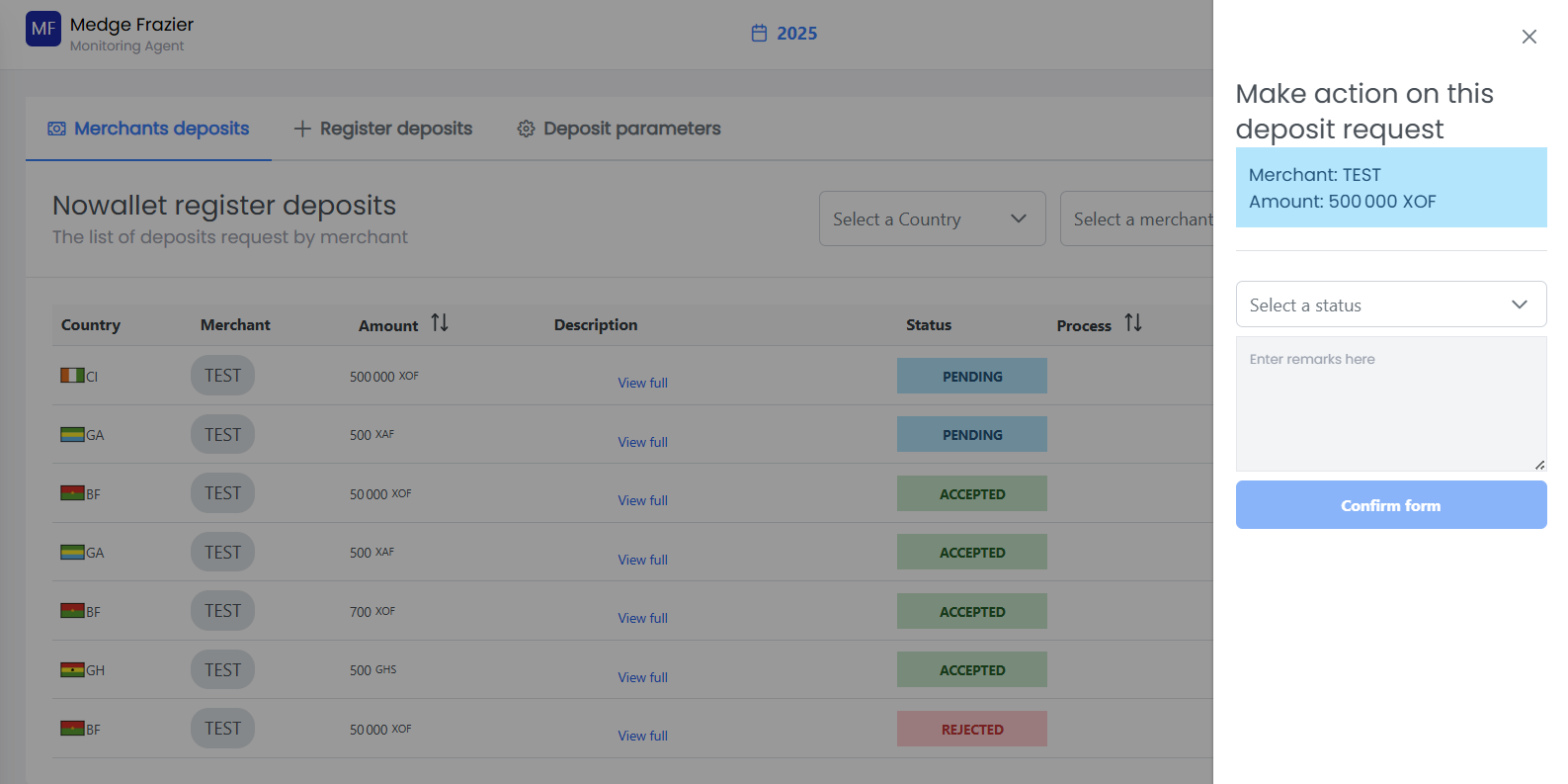
- Fill form, and choose whether to accept or reject the request, next click on the Confirm form button.
The request will be processed, status will be ACCEPTED and the merchant will be notified of the acceptance in her dashboard.
The request will be rejected, status will be REJECTED and the merchant will be notified of the rejection in her dashboard.
💾 Register deposits parameter
This section is used to record the company's banking and crypto information. Merchants must use these accounts to make transfers if they wish to replenish their balance.
This information will be visible in the merchant's dashboard when they request a replenishment.
List of deposit parameters
- In the back office, you can find a list of all deposit parameters that have been registered.
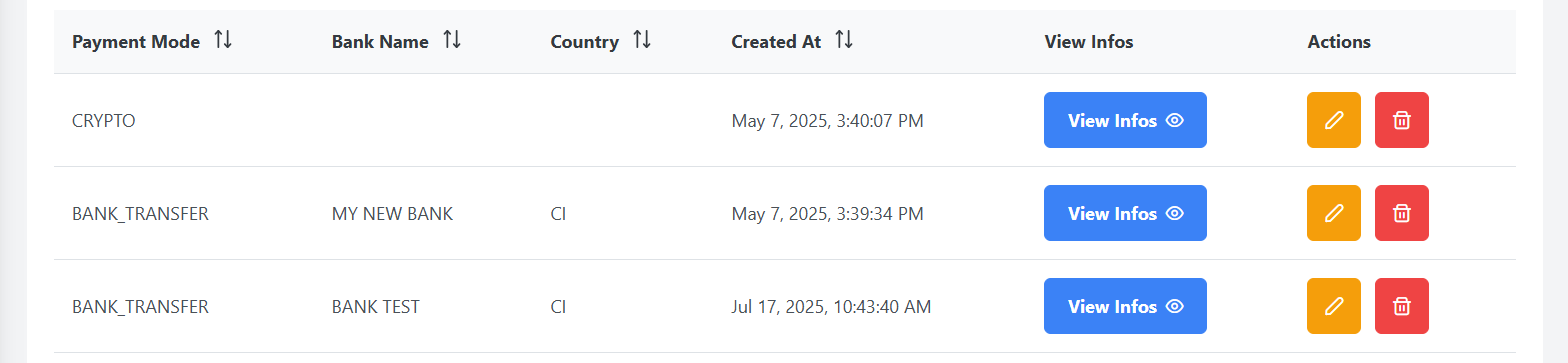
You can see more details about the deposit parameters by clicking on the View infos button.
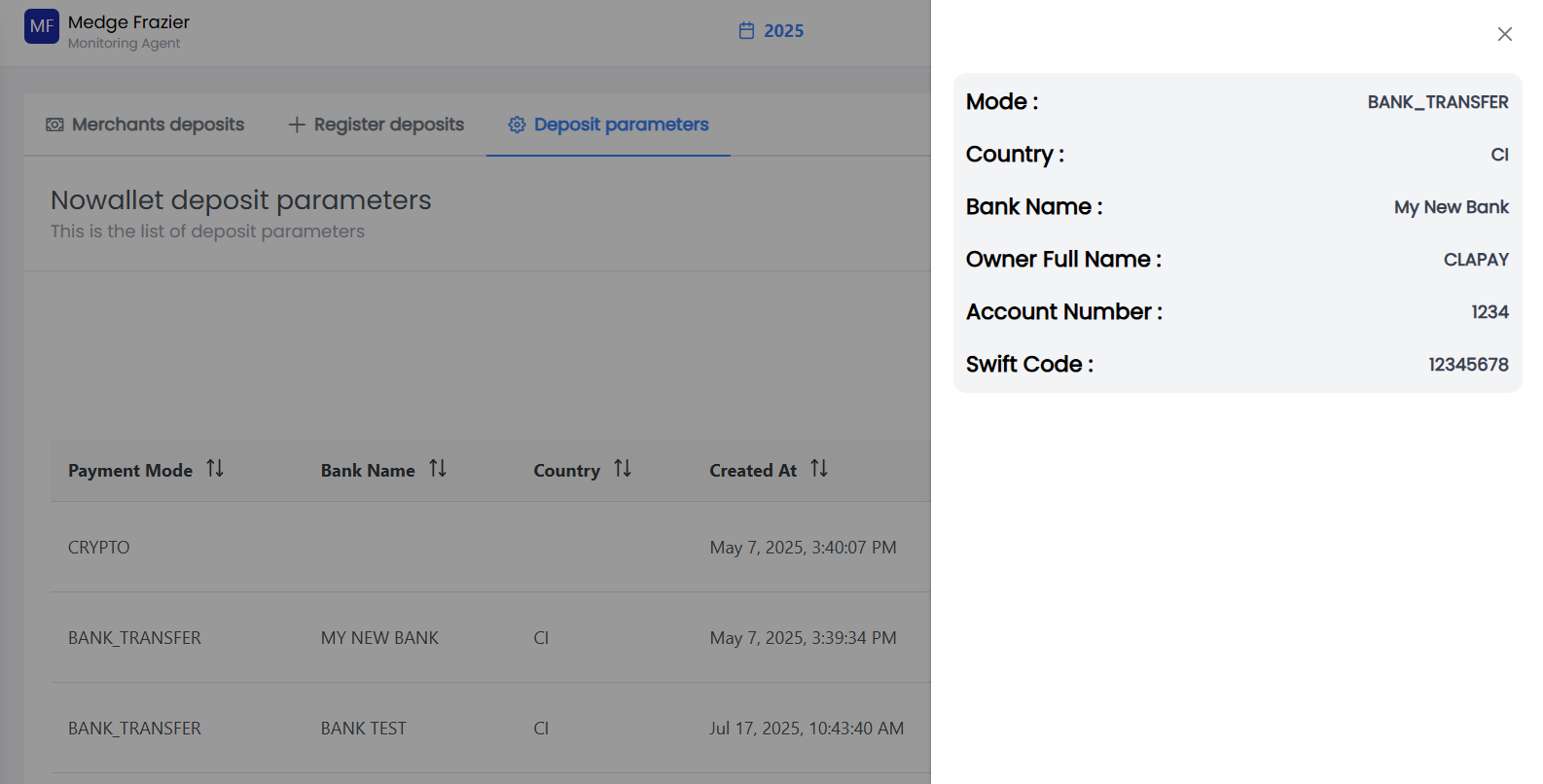
- In the merchant dashboard, the deposit parameters are displayed in the Top up request section.
Register a new deposit setting
To register a new deposit setting, follow these steps:
- Click on the ➕ Add Deposit Parameter button.

-
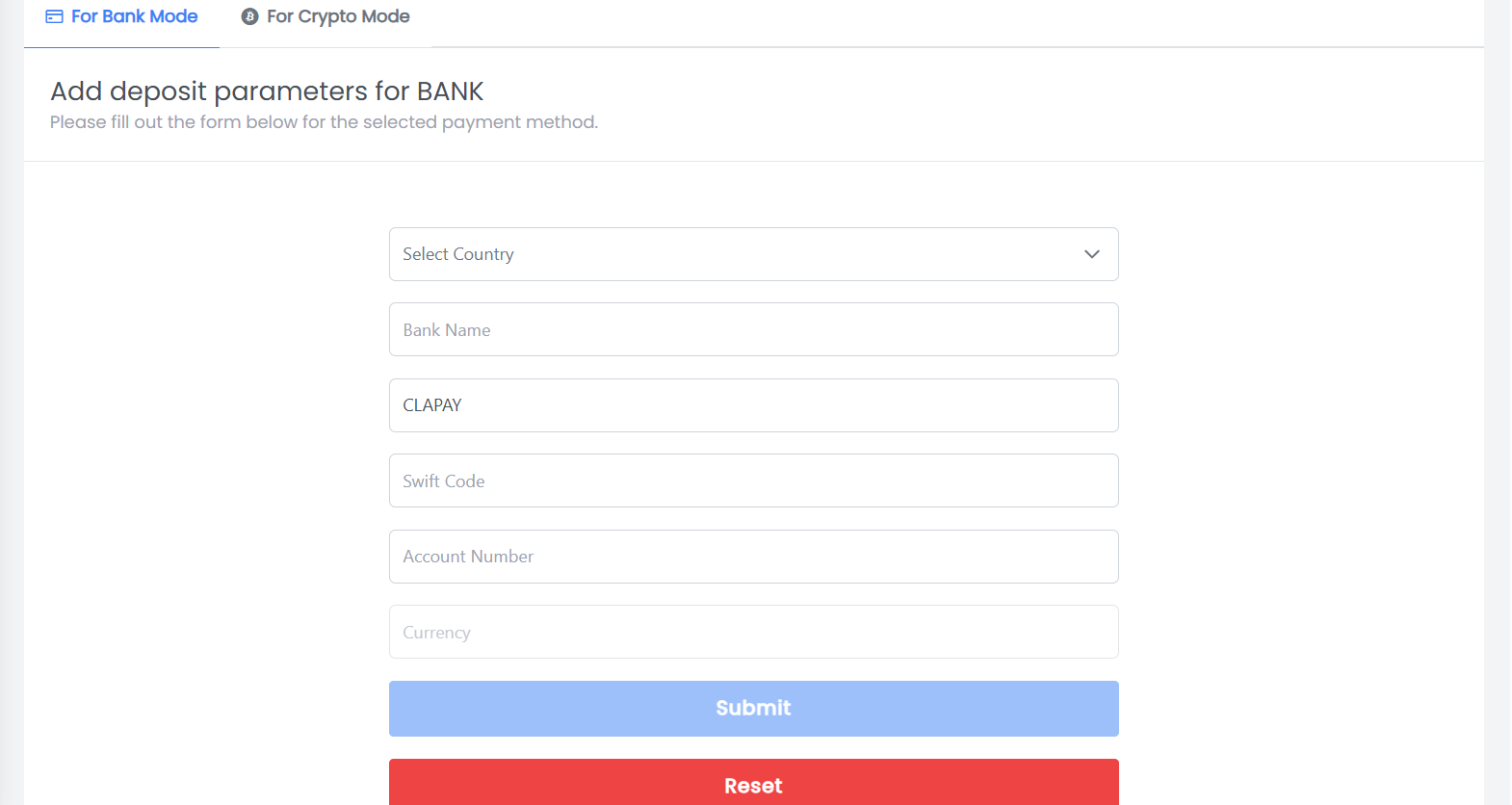
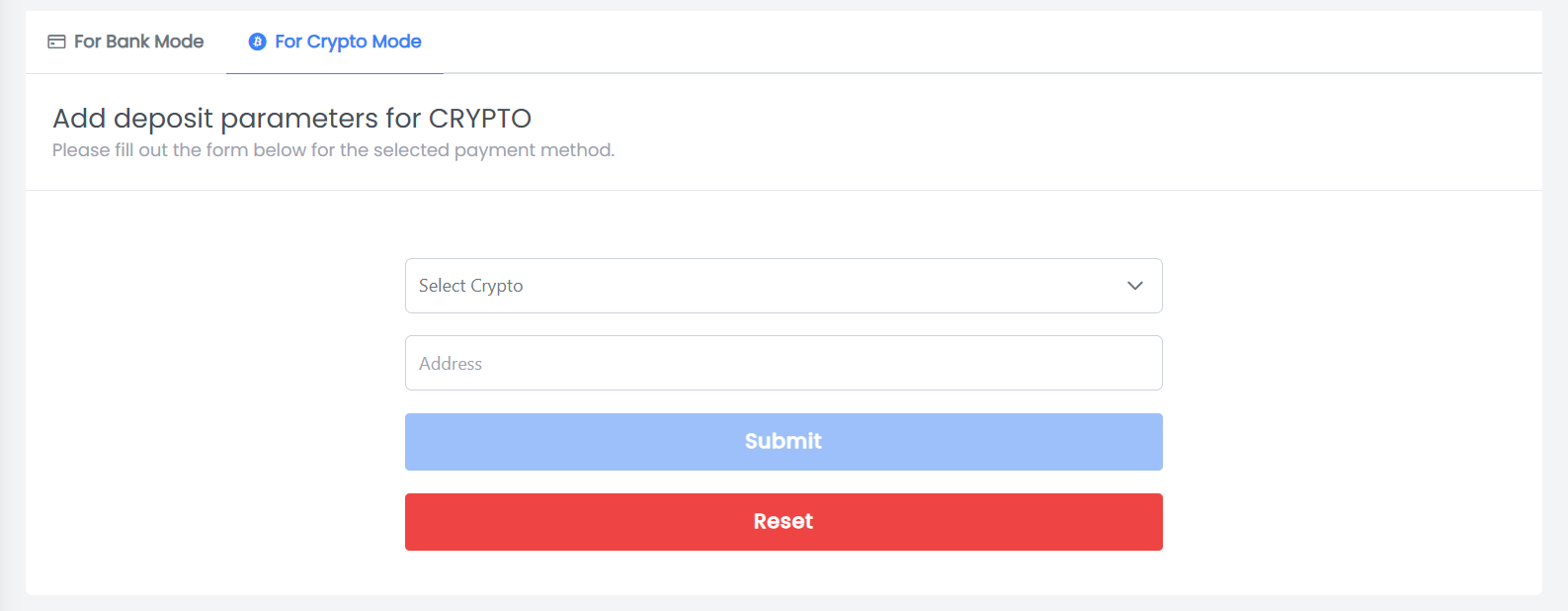
Fill in the required information on the form according to the transfer mode.
- Bank Mode: Enter the bank account details and click on the Submit button.
- Crypto Mode: Enter the crypto currency and wallet address and click on the Submit button.
Was this page helpful?