Bulk Payment
💸 Batch Extraction
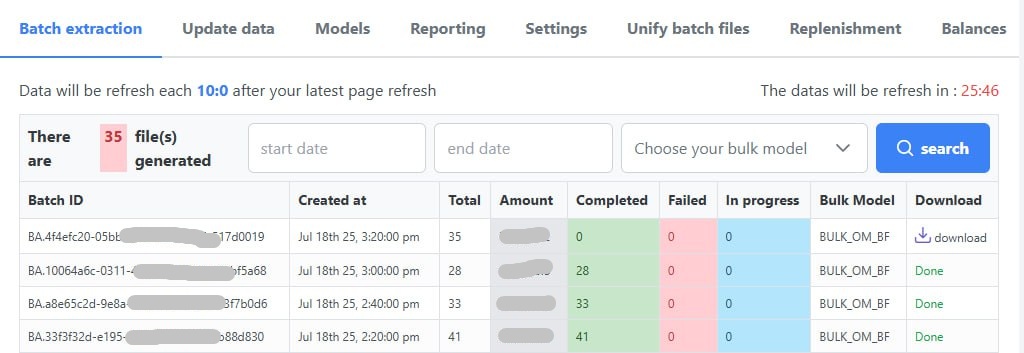
This interface allows you to view the files generated during batch data extraction. It is essential for tracking the processing status of each batch and accessing the results.
Each row in the table represents a batch of data extraction with the following information:
-
Batch ID: Unique identifier for the generated batch
-
Created at: Date and time the batch was created
-
Total: Total number of items to process
-
Amount: Total amount associated with the batch
-
Completed: Number of items processed successfully
-
Failed: Number of items that could not be processed
-
In Progress: Number of items still being processed
-
Bulk Model: Model used for batch processing
-
Download: Link to download the generated files
⏱
Automatic Refresh
-
Data is automatically updated every 10 minutes after the last manual refresh.
-
A counter located at the top right displays the time remaining before the next automatic update.
🔍 Filtering and Searching
The interface provides filters to:
-
Define a date range (
start dateandend date) -
Select a processing model (
bulk model) -
Launch a search via the 🔵 Search button
📌 Global Statistics
- The total number of files generated is displayed in a red box: 35 file(s) generated.
✅ File Status
-
Once processing is complete, files can be:
-
downloaded via the Download link
-
or marked as Done if they are already available.
🔄 Data Update
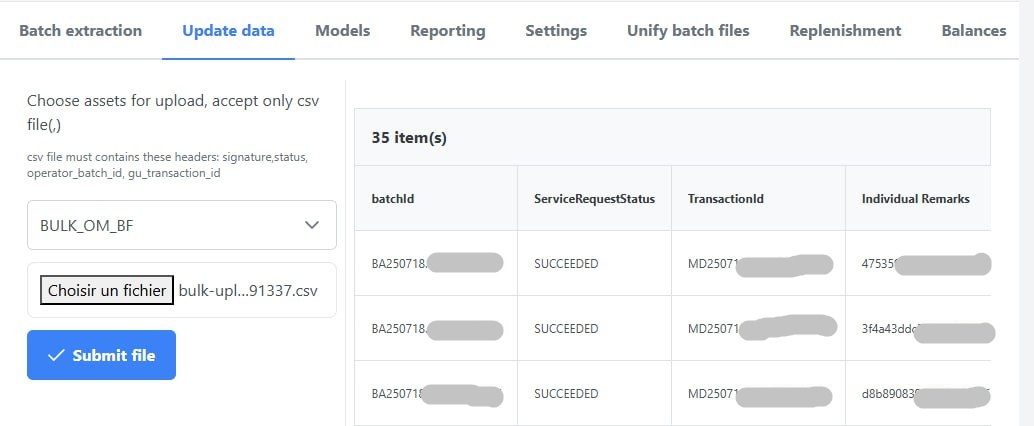
This interface allows you to update the data of existing batches by importing preformatted CSV files.
📤 File Import
-
Import only supports CSV files (
.csv). -
The file must contain the following headers:
signature,status,operator_batch_id,gu_transaction_id
📁 Update Steps
-
Select a template (
BULK_OM_BF, etc.) -
Choose the
.csvfile to import -
Click on Submit file
🧩 3. Processing Models (Bulk Models)
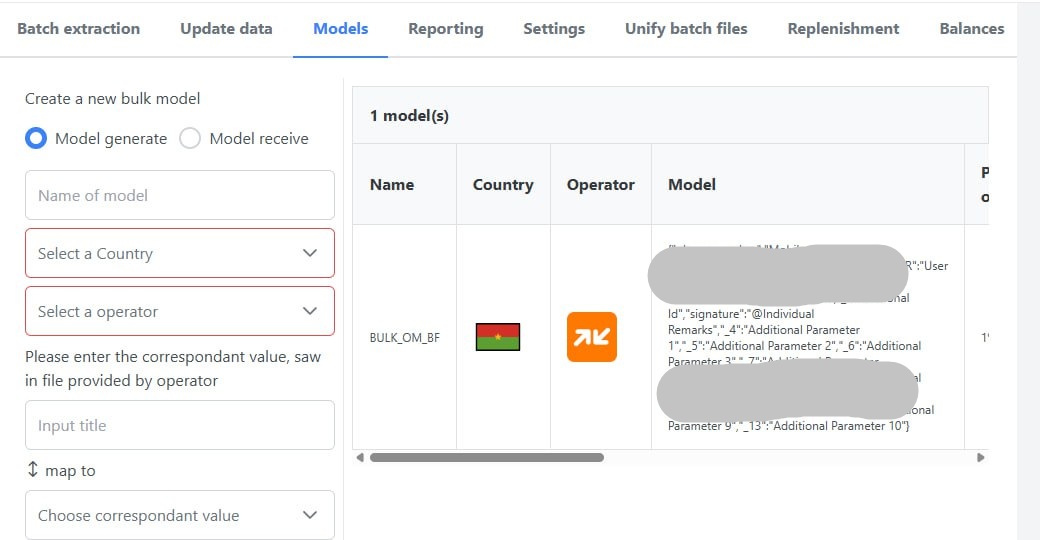
Processing models determine the structure and fields of the files processed in bulk.
🎛 Types of models
-
Model generate: for generating outgoing data -
Model receive: for receiving and processing incoming data
🧱 Creating a model
-
Name the model
-
Select a country and an operator
-
Add the expected parameters according to the format provided by the operator
-
Map each input field to a system field via
map to
🔍 Searching for a specific batch
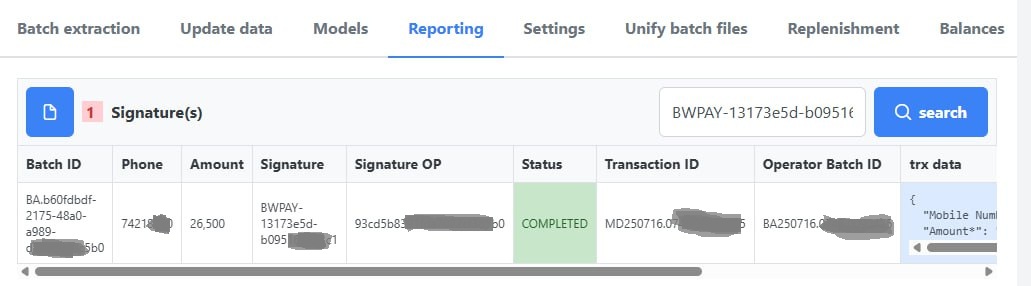
To search for a specific batch, use the search bar at the top of the page. Enter the batch's signature and then click the Search button.
Was this page helpful?