Test Payment Link
Overview
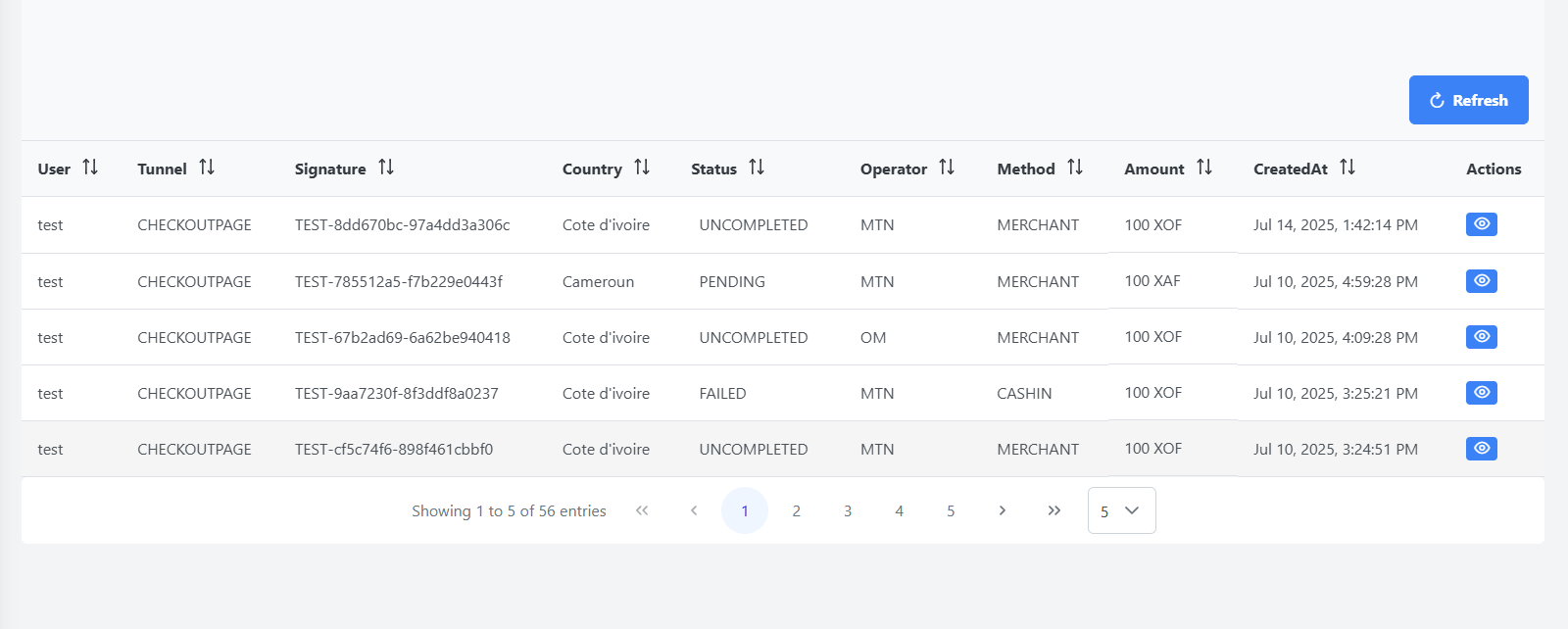
This interface displays the various features related to this section, as well as a table listing the various information related to the different payment links generated. The table includes the following columns:
-
User: The user who generated the payment link
-
Tunnel: The tunnel associated with the payment link (e.g., API or CHECKOUTPAGE)
-
Signature: The unique signature of the transaction
-
Country: The country associated with the payment link
-
Status: The current status of the transaction (e.g., PENDING)
-
Operator: The operator handling the transaction
-
Method: The payment method used for the transaction (e.g., CASHIN, MERCHANT)
-
Amount: The total amount of the transaction
-
Created At: The date and time when the payment link was created
-
Action: Action buttons to see more details about the payment link
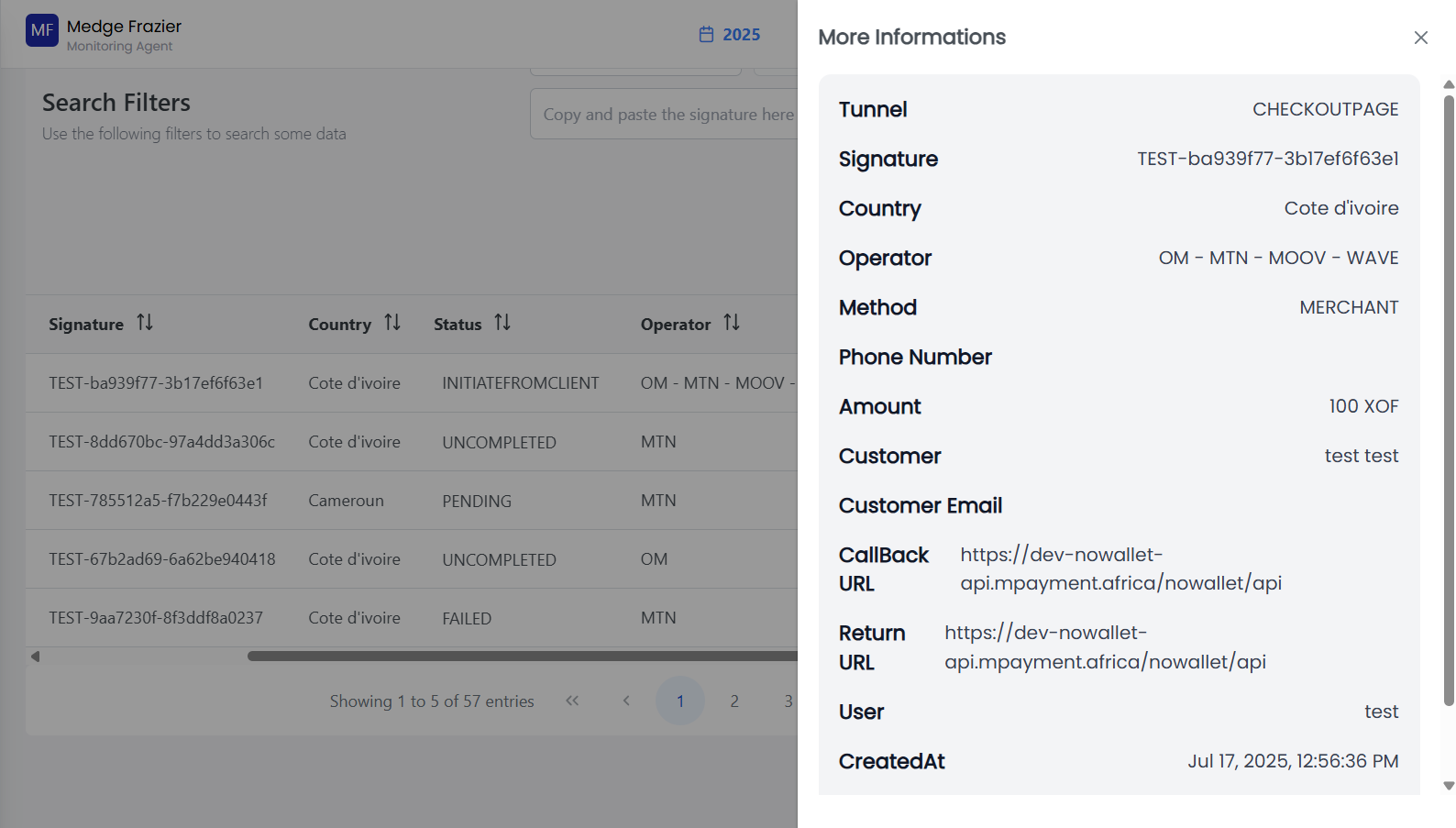
For more details on the payment link, click on the Show icon button corresponding to the relevant row in the table. A modal window like this will appear with all the information.
What are features?
🔍 Filter search
Use the search feature to filter the data table according to different criteria. Once you are done, click on the Search button.

Generate Payment Link
To generate a new payment link, follow these steps:
1. Click on the "Show Form" button

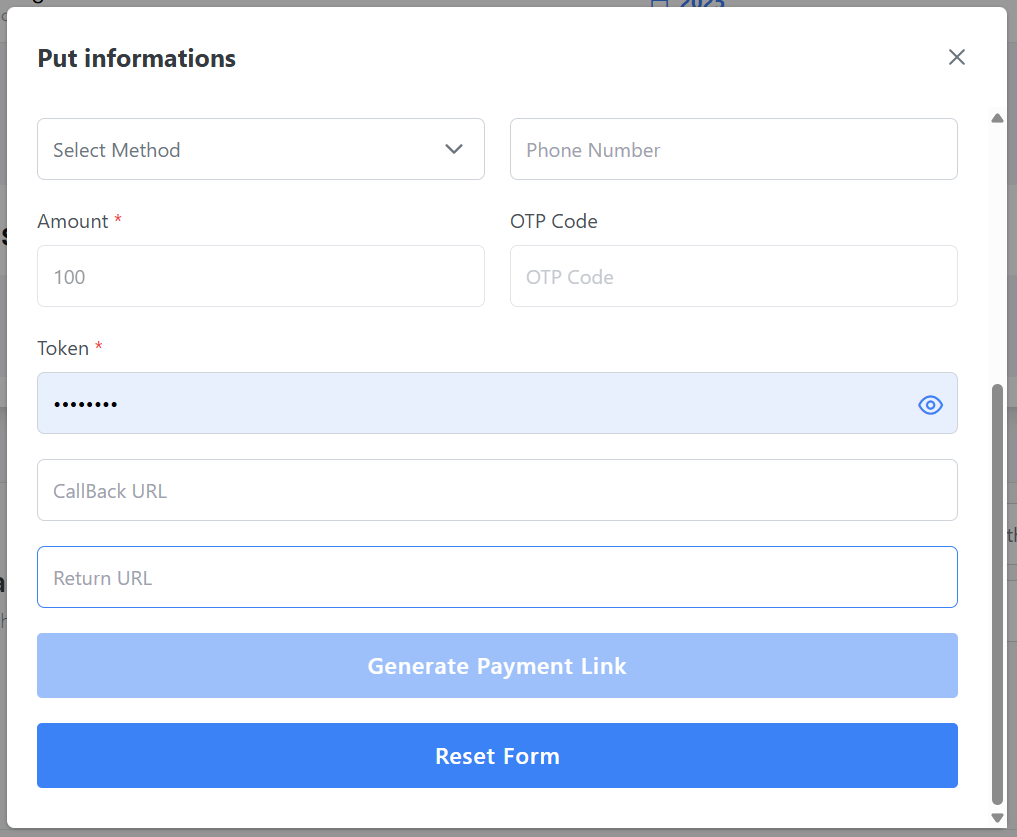
2. Fill in the required details
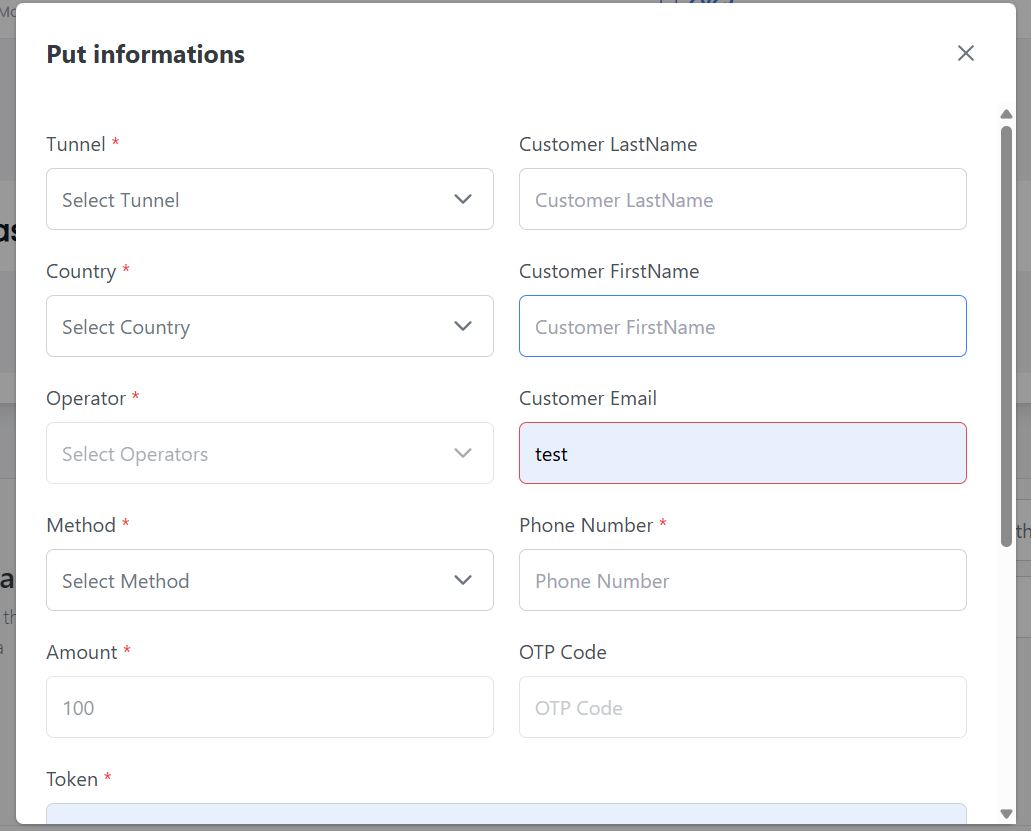
3. Click on the "Generate Payment Link" button
Test Payment Link
Once you have generated a payment link, you can test it to ensure it works correctly. You can access the payment page in your preferred browser by clicking on the button below.

This will open a new tab in your browser where you can simulate a transaction using the generated payment link.
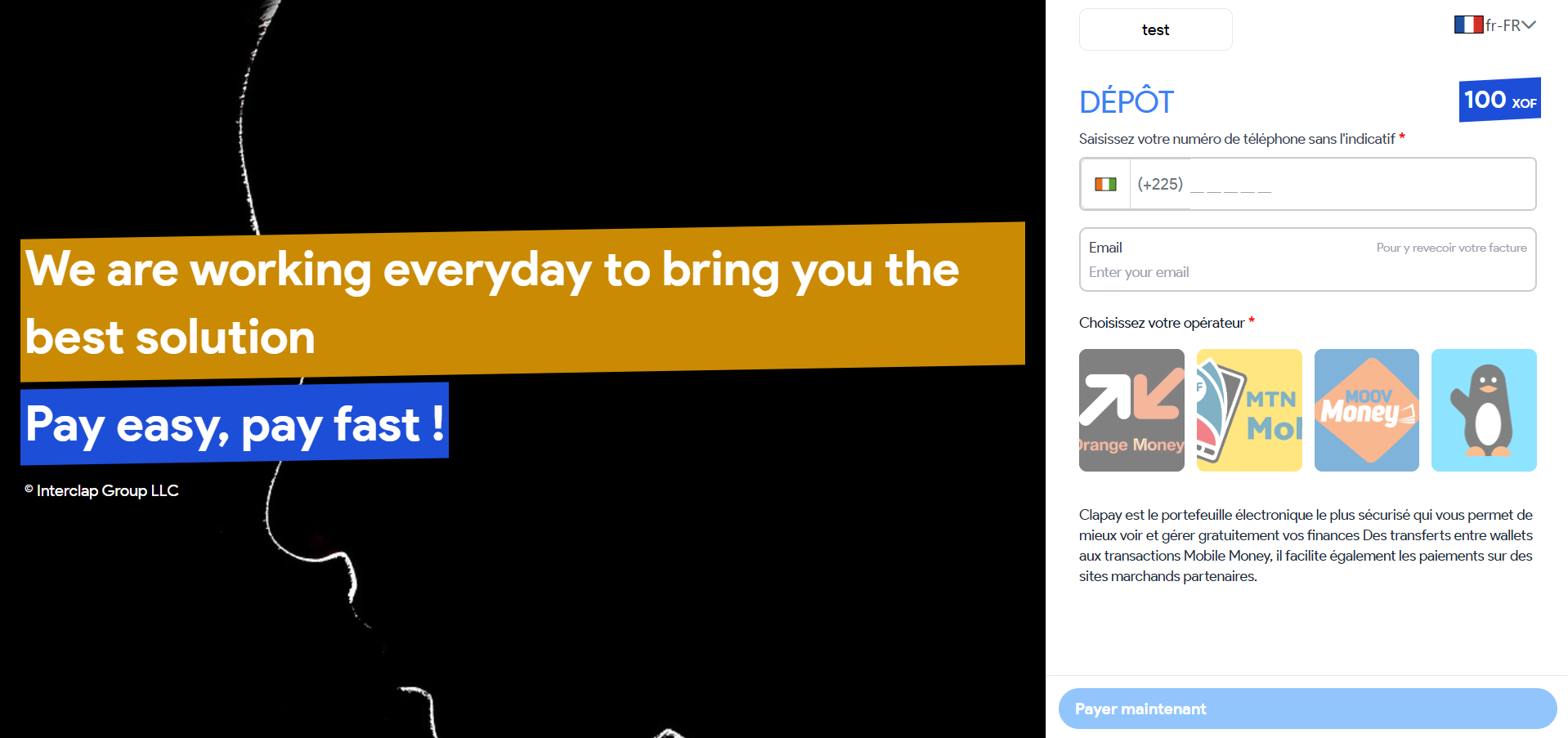
You can also test the payment link by copying it and pasting it into your browser's address bar.
Was this page helpful?