Generate Token
The Generate Token section allows you to create a token for secure transactions and API access in the ClaPay Back Office 🔐.
This token is essential for authenticating your requests and ensuring the security of your operations 🛡️.
🧾 What is a payment token?
A payment token is a secure API key 🔑 that enables you to integrate payment functionalities into your applications or systems 💻.
It acts as a digital identity to authenticate your requests to our payment API 🌐.
✅ Advantages of payment tokens
- 🛡️ Enhanced security: Tokens enable you to carry out transactions without exposing your login details.
- 🎯 Access control: You can create tokens with specific permissions for different functionalities.
- 🔍 Traceability: Each token can be individually tracked and revoked in the event of compromise.
- ⚙️ Simplified integration: Easily integrate our payment services into your applications.
⚙️ How to generate a token
🆕 Create a new token
Click on the Create a new API token button above ➕.
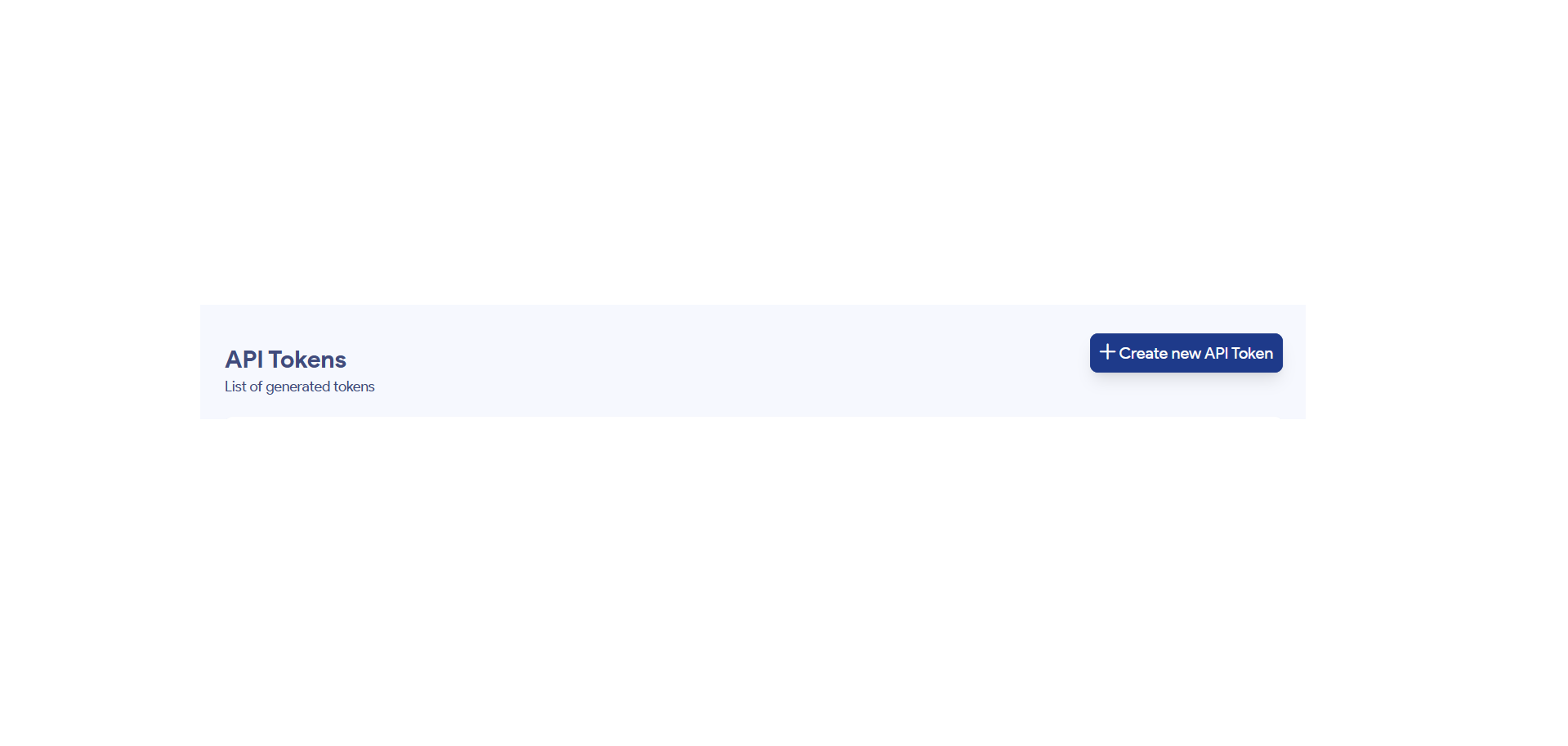
🖱️ Once you have clicked on this button, a new page will appear 📄 where you can enter the information relating to the token 🔐. This includes the name 🏷️ of the token, the validation period ⏳, and a description 📝 for the token that will be generated.
🧾 Fill in the required fields
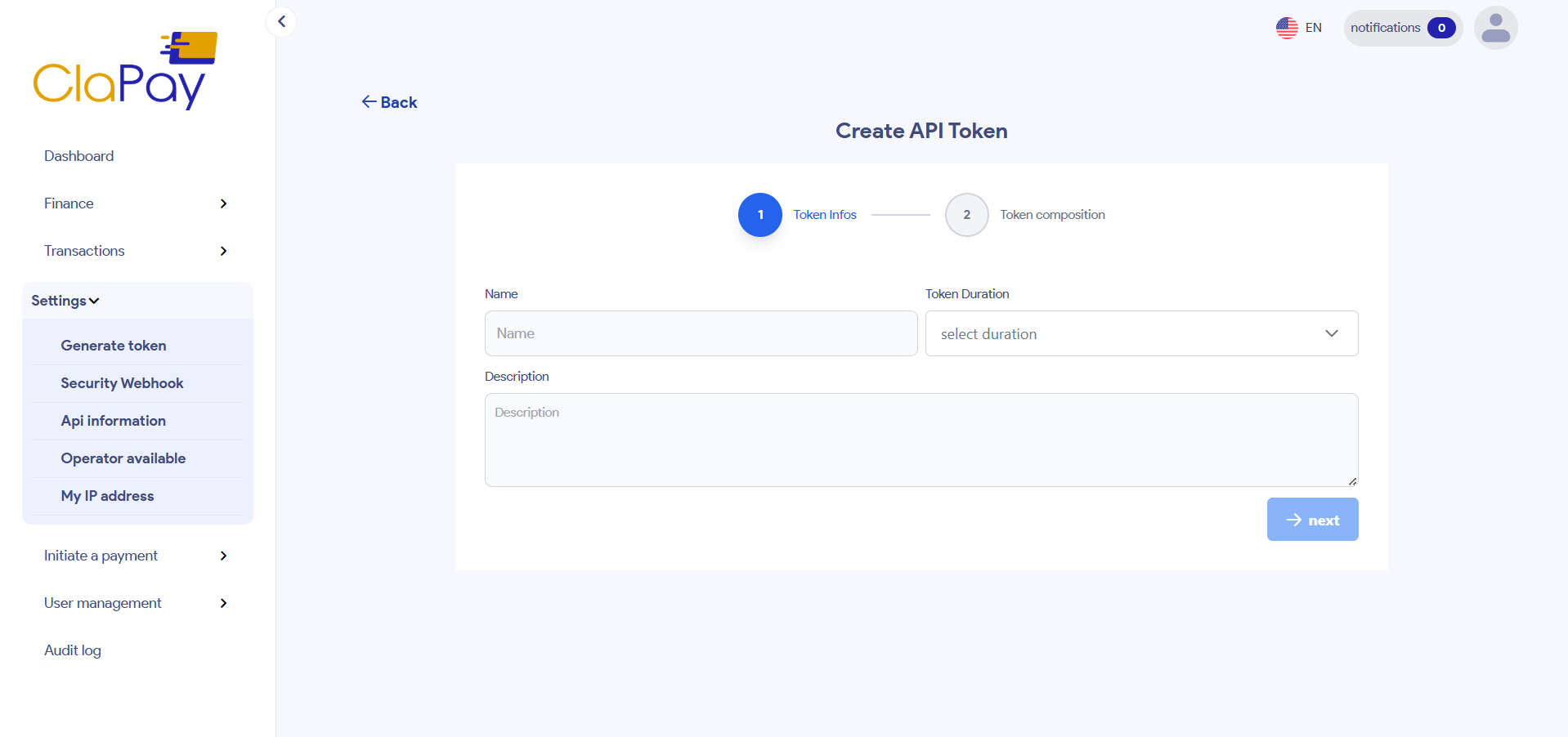
🔵 Step 1️⃣ ( Token Infos )
When creating a new token, you will need to fill in the following fields:
- ✏️ Give your token a descriptive name for easy identification 🏷️.
- ⏳ Set an token duration if you wish to limit the token's validity 📆.
- 📝 Add a description to document the intended use of the token 📄.
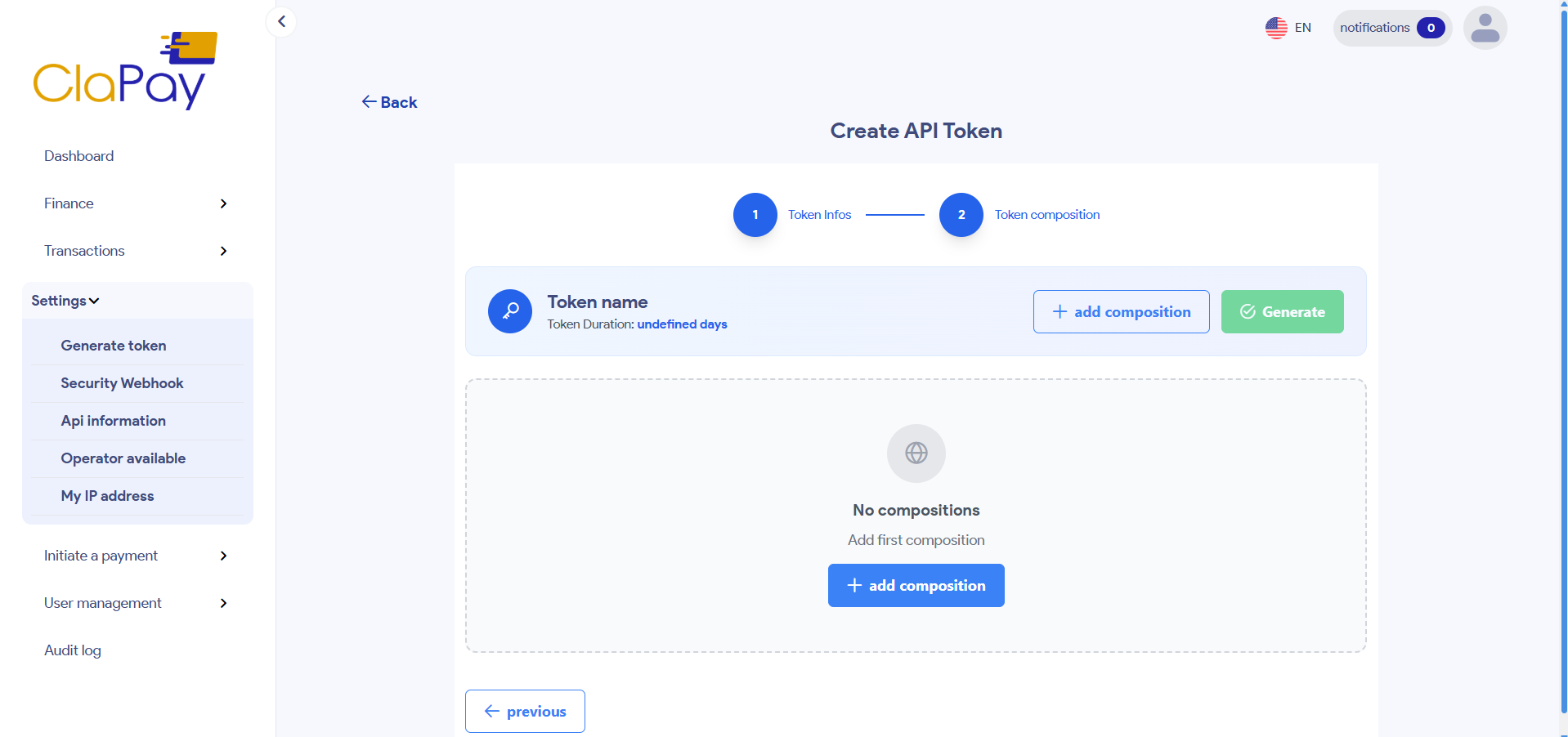
🔵 Step 2️⃣ ( Token Composition )
🔍 Learn how the token is structured 🧱 and what components define its behavior 🧠 and value 💰.
- Click on the ➕ add composition button.
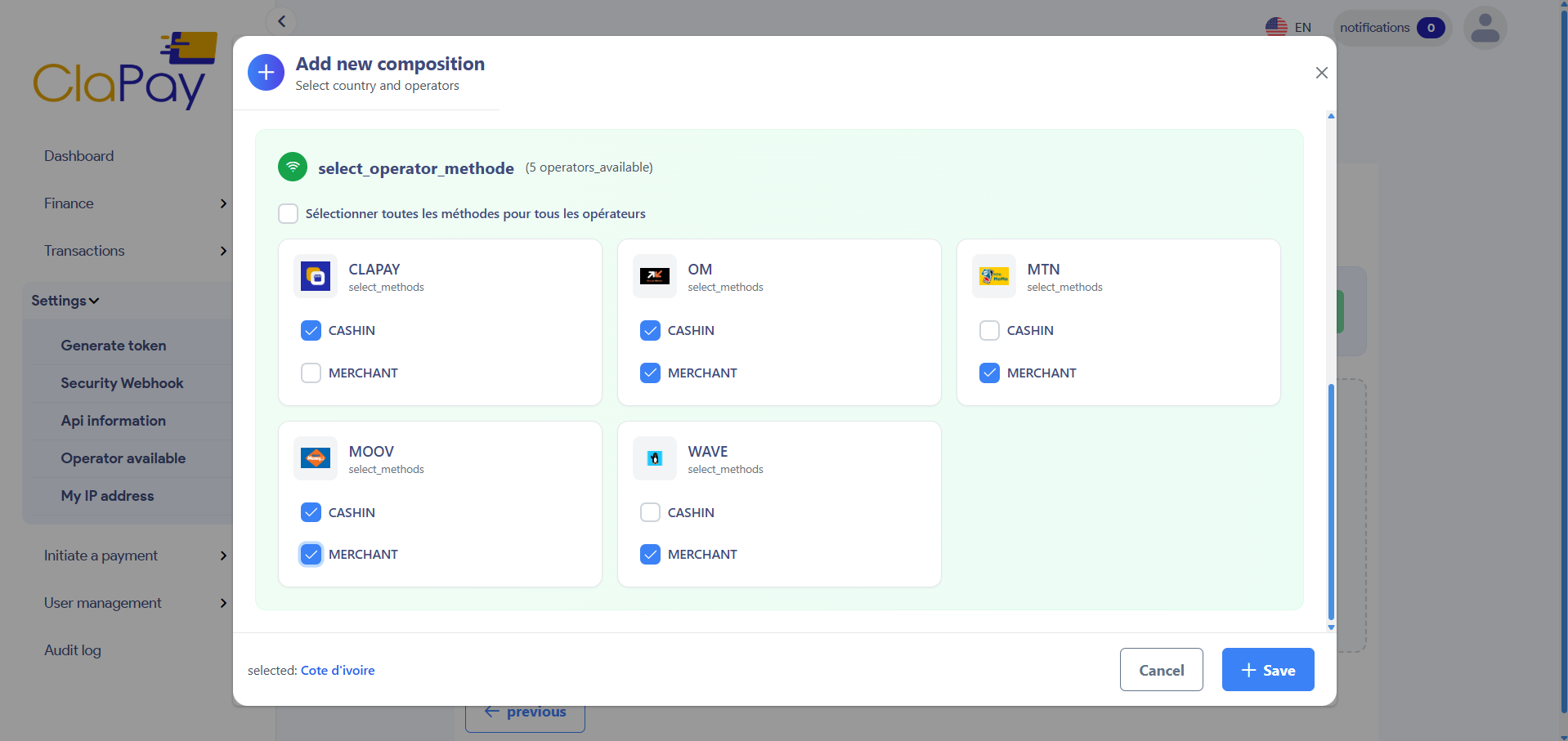
- 🌍 Next, select the country 🏳️ that will be linked to the token 🔗. For this example, we will select Ivory Coast 🇨🇮 as the country.
📌 Note that you can select all available countries 🌐 from the list by clicking on the corresponding checkbox ☑️.


- ✅ Select the methods of your choice 🎯 for the different operators 📶 available.
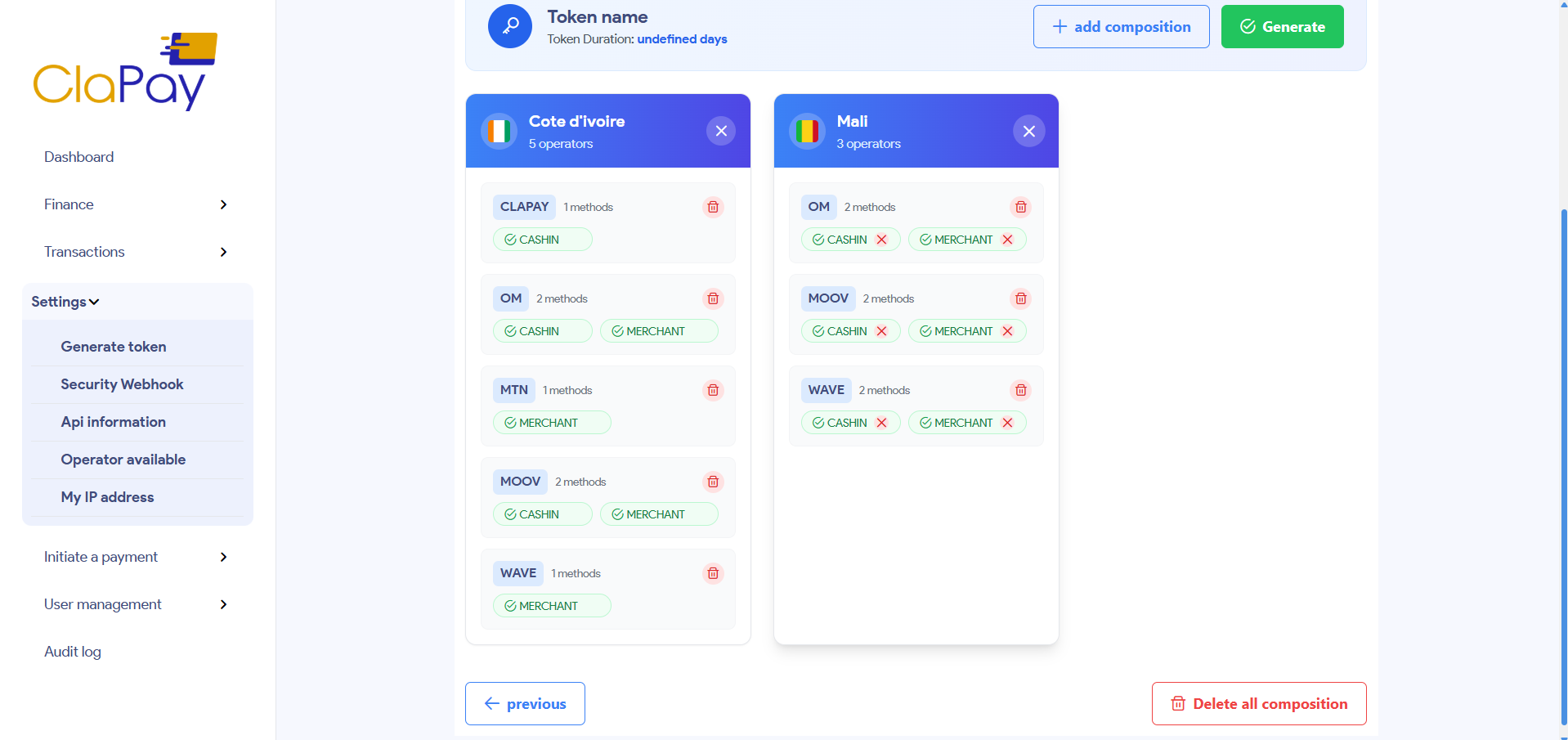
- Next, click on the ➕ save button, and a page like this will appear.

🖼️ The following image shows the case where we add a new composition for the country Mali 🇲🇱.
Now suppose we want to delete one or more methods linked to operators for a particular country 🌍, an operator with its methods, or even the entire composition for that country. Simply hover over the corresponding card 🃏, then use the delete buttons ❌ to remove what you want.
🚀 Generate the token
Finally, click on Generate button to generate your token 🛎️.
📋 Copy the token
Copy the generated token and store it securely 🗝️. You will not be able to view it again after this step ⛔.
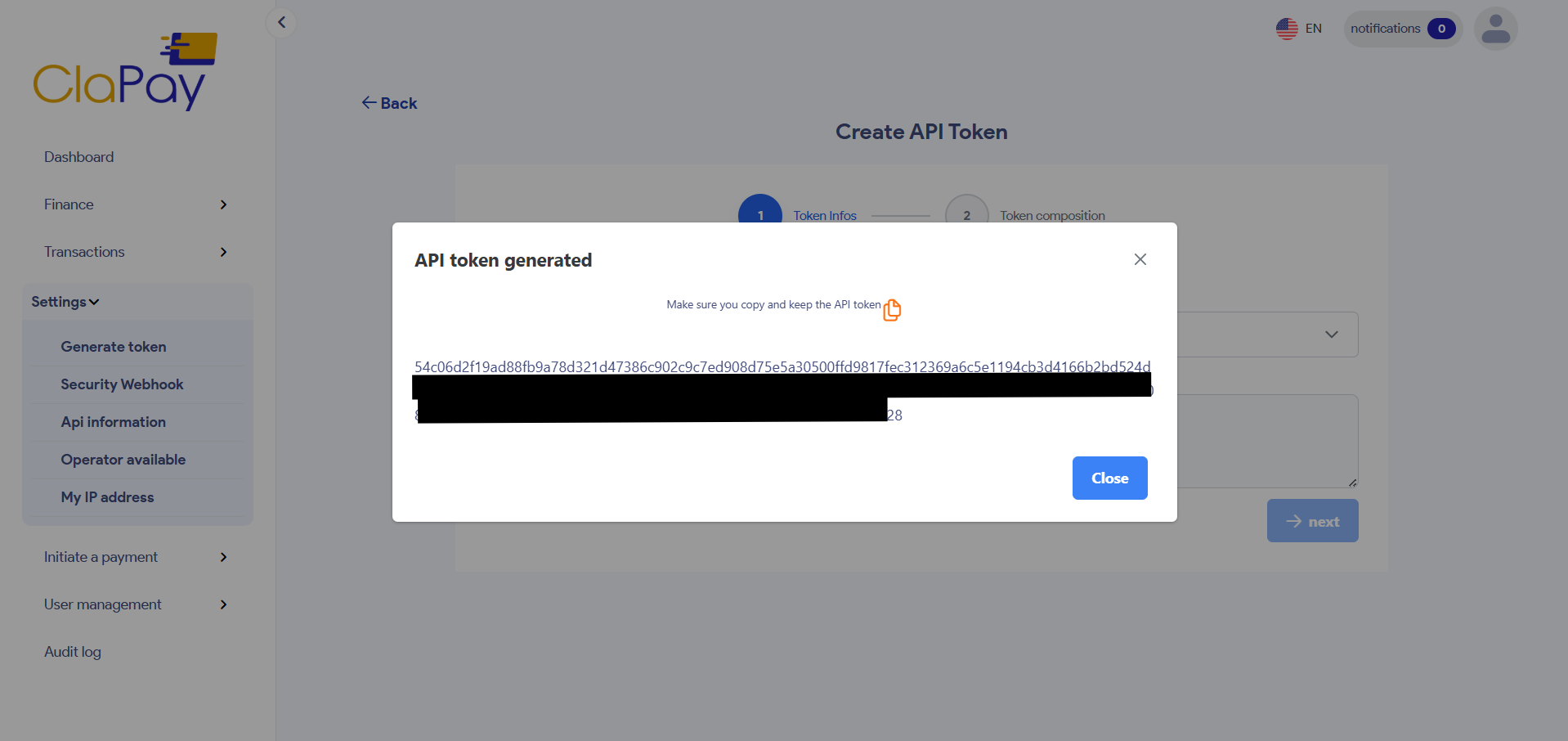
🔐 Treat your tokens like passwords. Never share them or store them in publicly accessible files. Revoke any compromised token immediately ⚠️.
📄 List of generated tokens
This table displays all the tokens you have generated, along with their details:
- 🏷️ Name: The name you assigned to the token.
- 📅 Created At: The date and time the token was created.
- 📆 Expiry Date: The expiration date of the token (if set).
- 📌 Status: The current status of the token (active or revoked).
- 🧩 Composition: The composition of the token 🧬.
- ⏱️ Last Date Used: The last date and time the token was used.
- 📝 Description: A brief description of the token's intended use 🗒️.
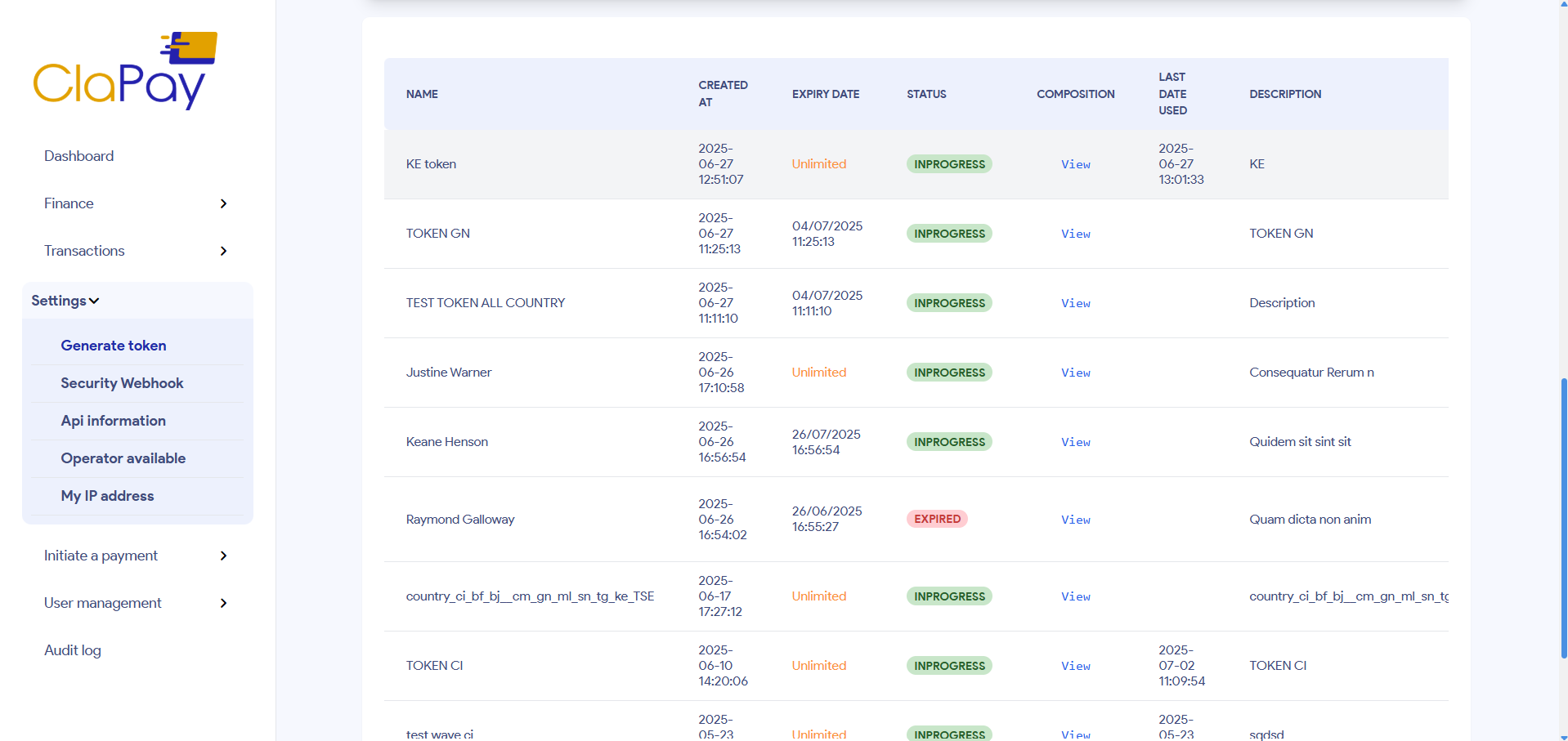
📋 In the table displaying the list of generated tokens 🔐, you can view the details of each row 📄 by clicking on the View 🔍 button in the corresponding Composition column.

Was this page helpful?