Merchant Config
🏪 Merchant Config Overview
This section provides an overview of the merchant configuration settings, including fees and limits for different countries. You can add and edit merchant configurations as needed.
💰 Merchant Fees
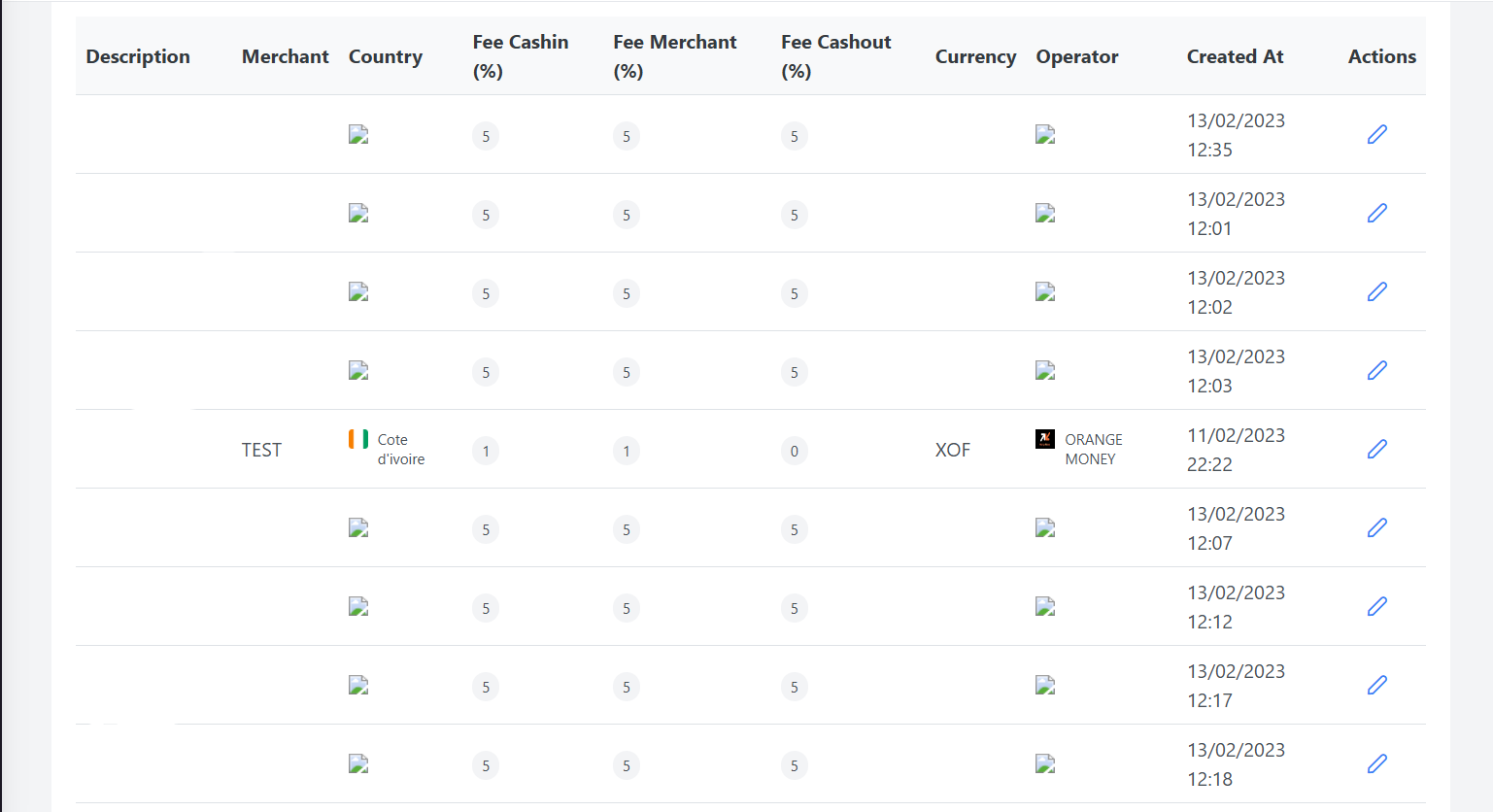
This table displays the merchant fees for each country with the following information:
-
Description: A brief description of the merchant fee
-
Country: The country where the merchant operates
-
Merchant: The name of the merchant
-
Fee cashin: The fee charged for cashin transactions
-
Fee merchant: The fee charged for merchant transactions
-
Fee cashout: The fee charged for cashout transactions
-
Currency: The currency used for the fees
-
Operator: The operator responsible for the merchant
-
Created at: The date and time when the merchant fee was created
-
Action: Action buttons to manage the merchant fee (e.g., Edit)
💳 Merchant Limits
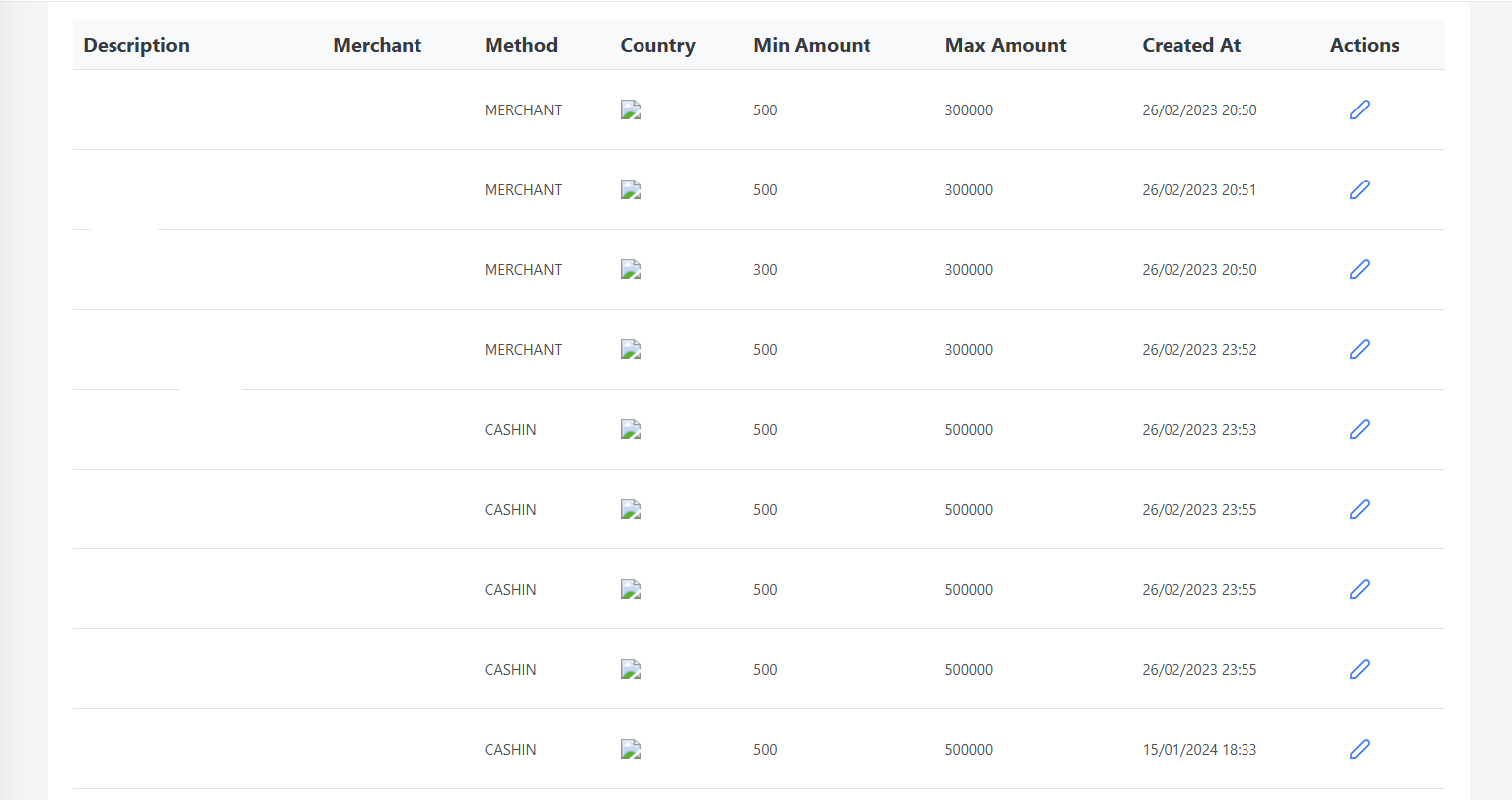
This table displays the merchant limits for each country with the following information:
-
Description: A brief description of the merchant limit
-
Merchant: The name of the merchant
-
Method: The method used for the merchant limit (e.g., CASHIN, MERCHANT)
-
Country: The country where the merchant operates
-
Min Amount: The minimum transaction amount
-
Max Amount: The maximum transaction amount
-
Created at: The date and time when the merchant limit was created
-
Action: Action buttons to manage the merchant limit (e.g., Edit)
What are features?
🔍 Filter search
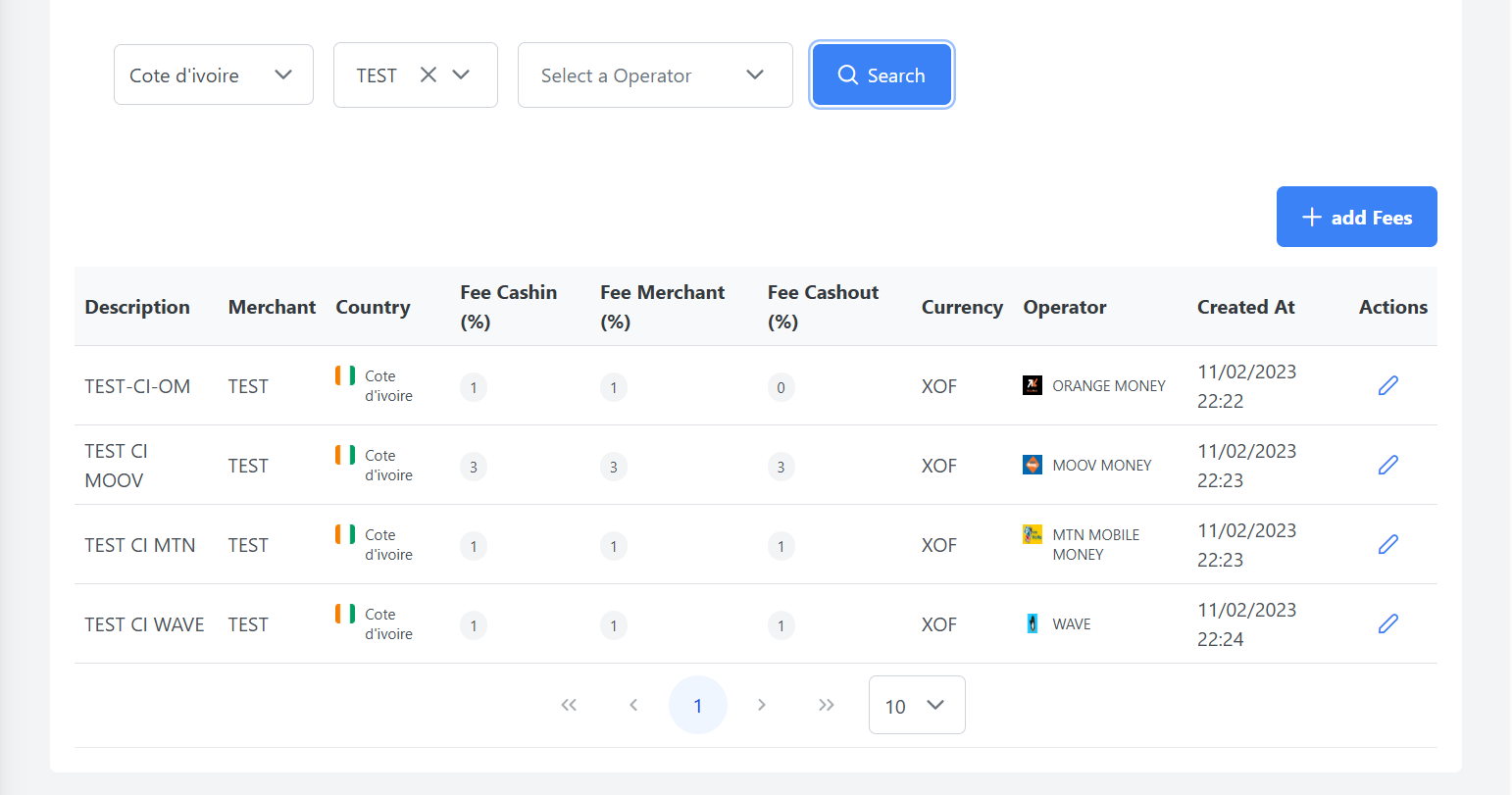
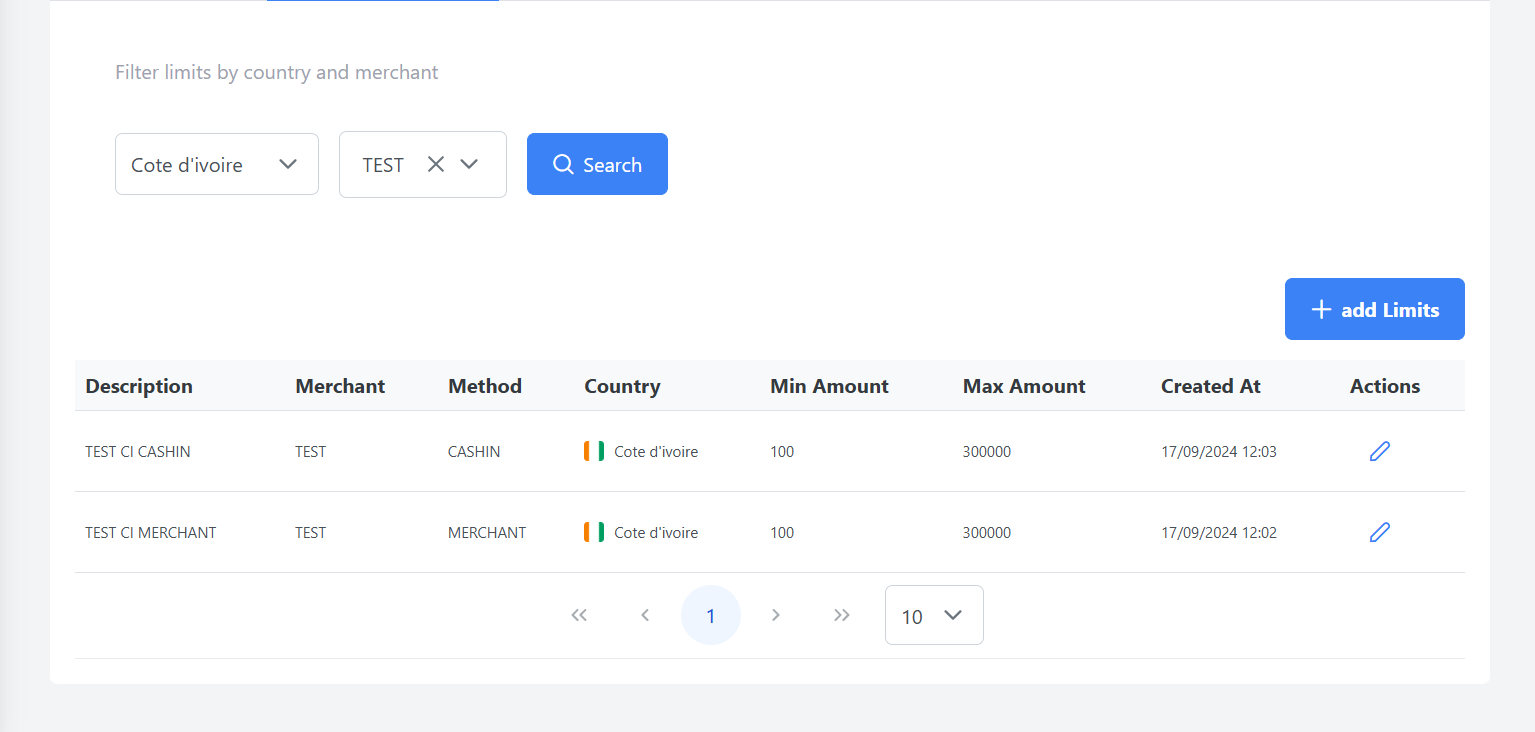
Use the search feature to filter the data table according to different criteria. Once you are done, click on the Search button.
1. Search Merchant Fees

For example, we can search for all merchant fees for the country Ivory Coast (🇨🇮) and for the merchant TEST.
2. Search Merchant Limits

For example, we can search for all merchant fees for the country Ivory Coast (🇨🇮) and for the merchant TEST.
➕ Add Configuration
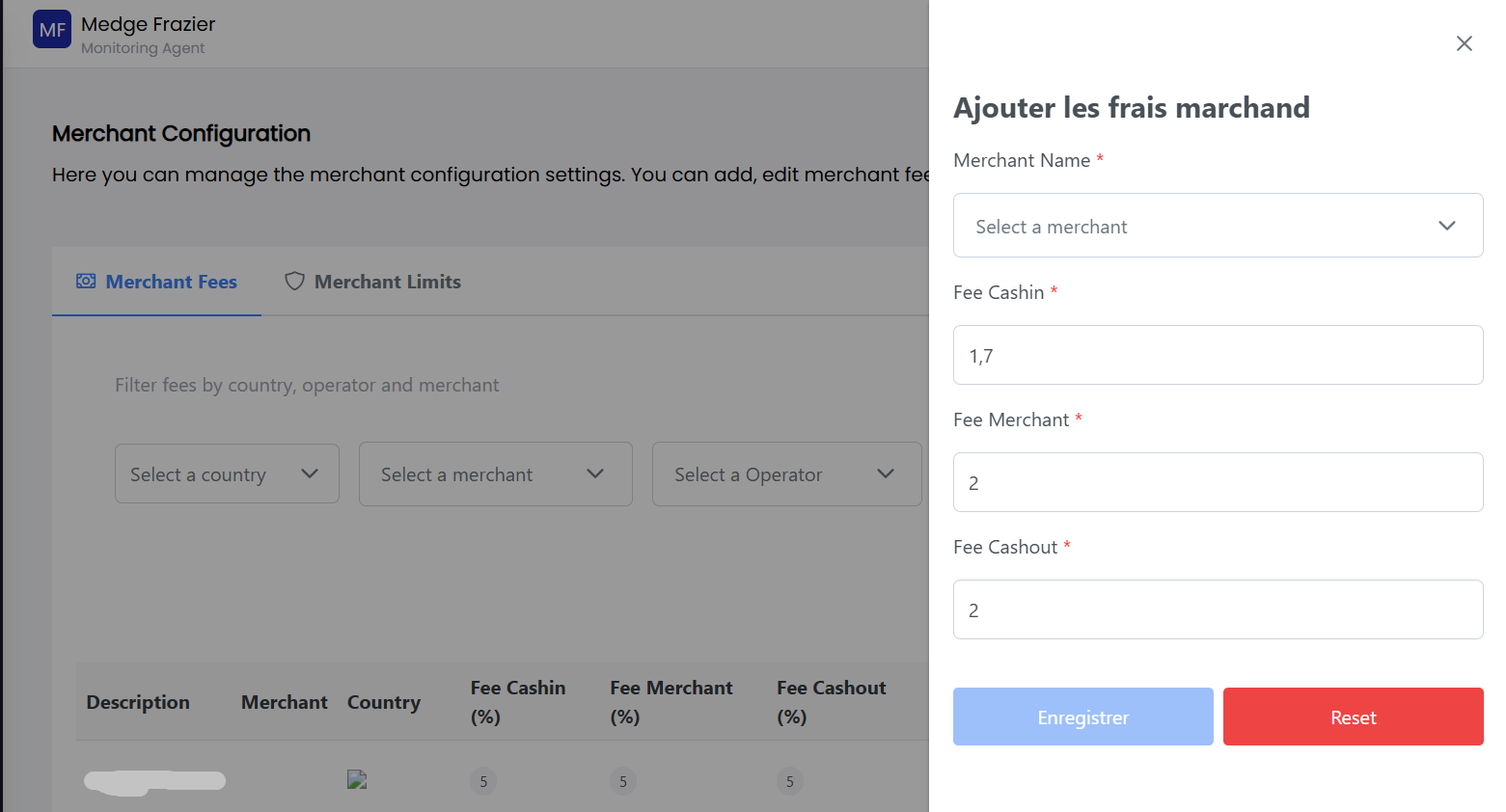
1. Add Merchant Fees
- To add a new merchant fee, click on the ➕ add Fees button

- Fill in the required information in the form that appears and click on the Enregistrer button.
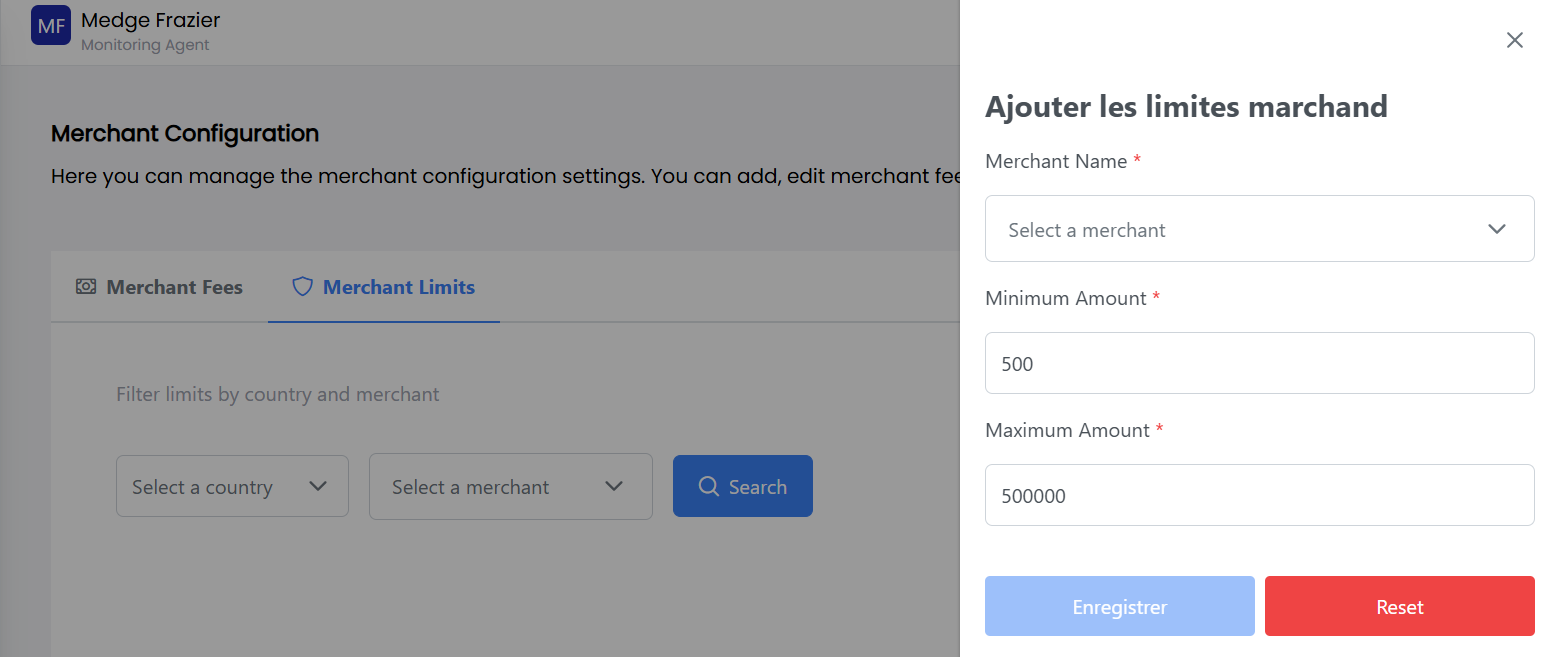
2. Add Merchant Limits
- To add a new merchant limit, click on the ➕ add Limits button

- Fill in the required information in the form that appears and click on the Enregistrer button.
✏️ Edit Configuration?
1. Edit Merchant Fees
- To edit a merchant fee, click on the Edit button corresponding to the relevant row in the table.

- Modify the required information in the form that appears and click on the Modifier button.

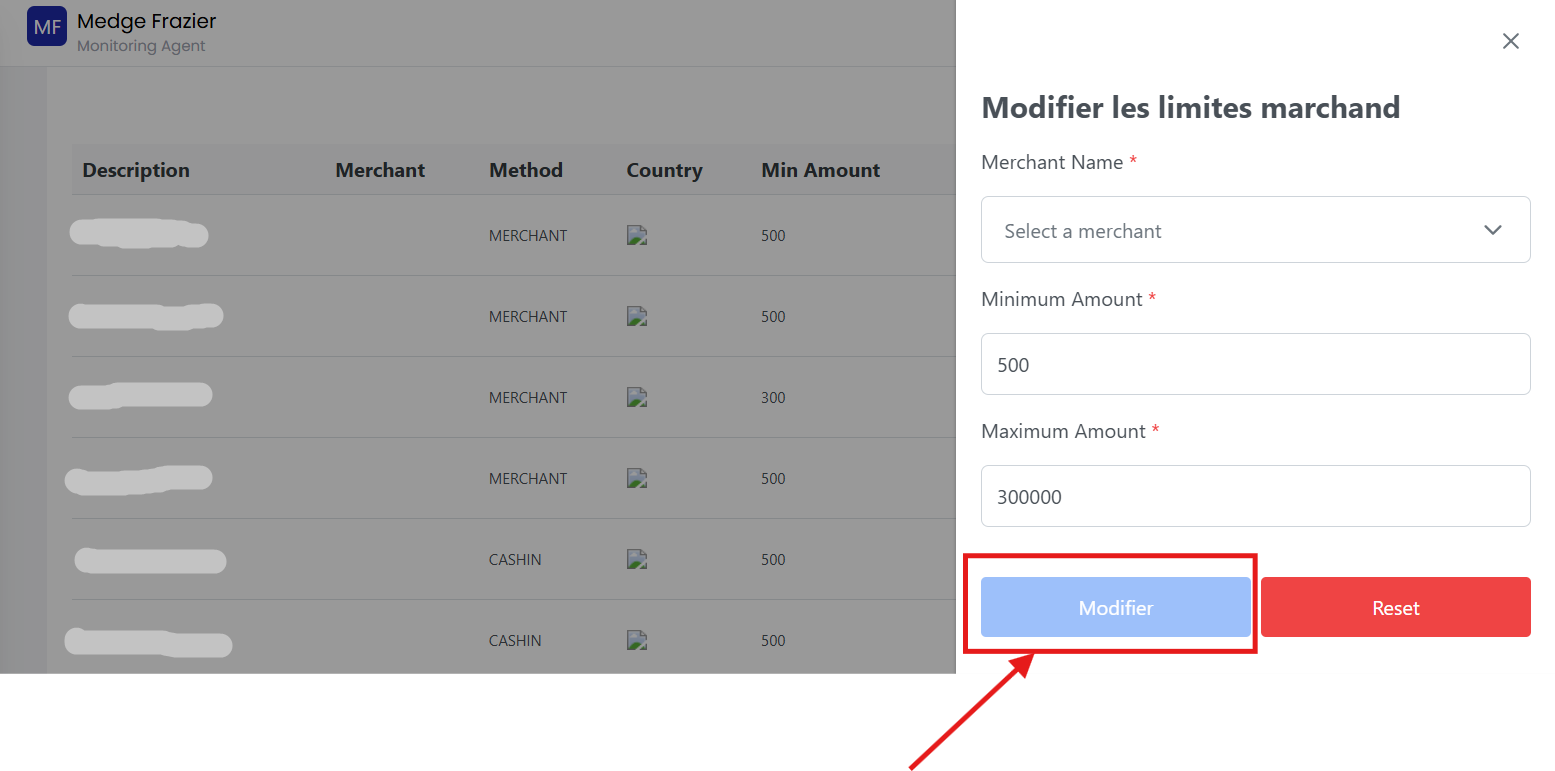
2. Edit Merchant Limits
- To edit a merchant limit, click on the Edit button corresponding to the relevant row in the table.

- Modify the required information in the form that appears and click on the Modifier button.
Was this page helpful?