Top Up Request
To fund your ClaPay wallet, you must submit a provisioning request 📝.
This process lets you choose your preferred funding method and ensures your request is properly documented 🗂️.
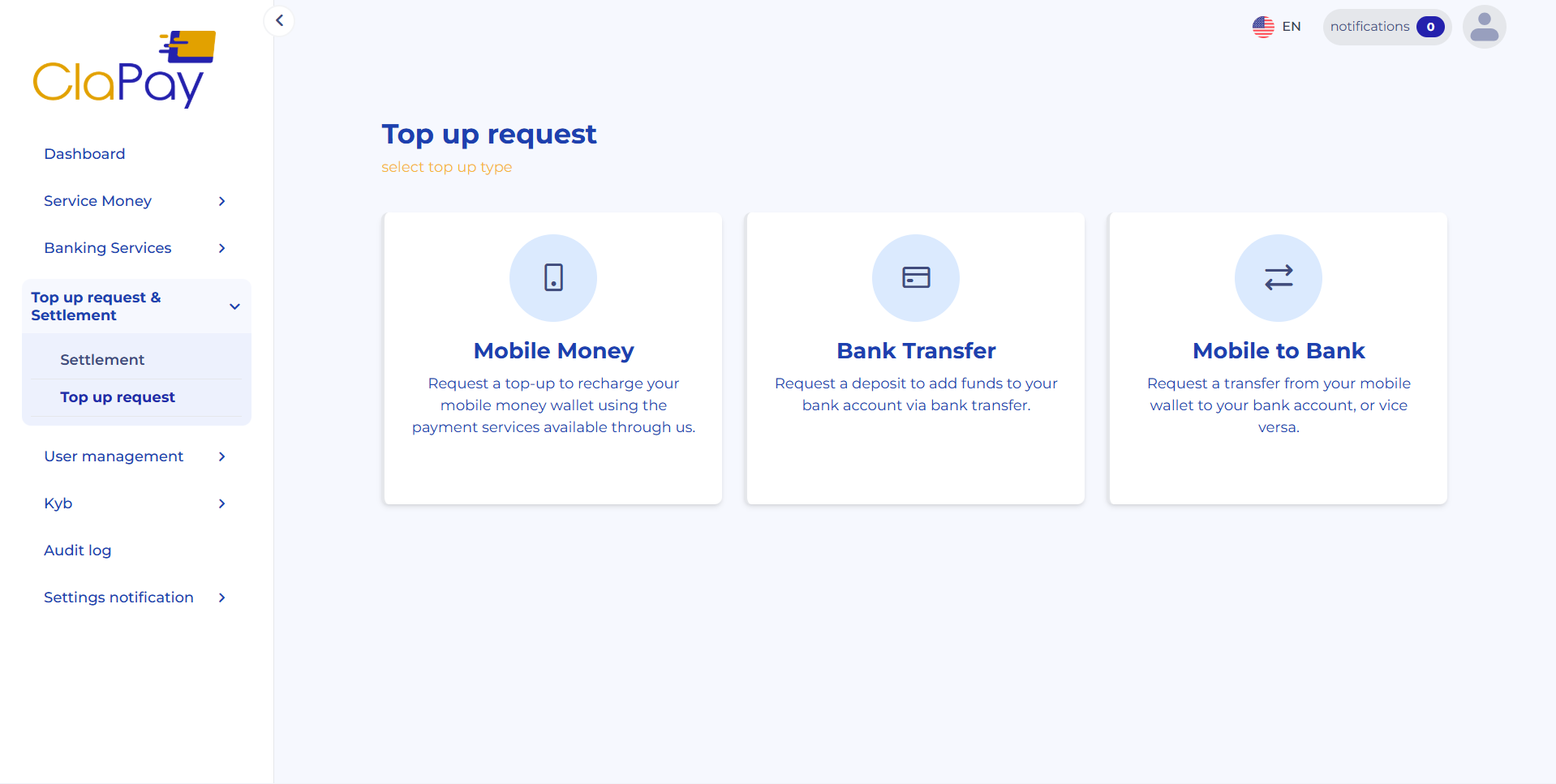
Mobile Money
Here’s how to correctly submit a provisioning (top-up) request in the ClaPay Back Office:
1.
🖱️ Open the Request Form
Click the "Make a request" button located at the top-right corner of the page.
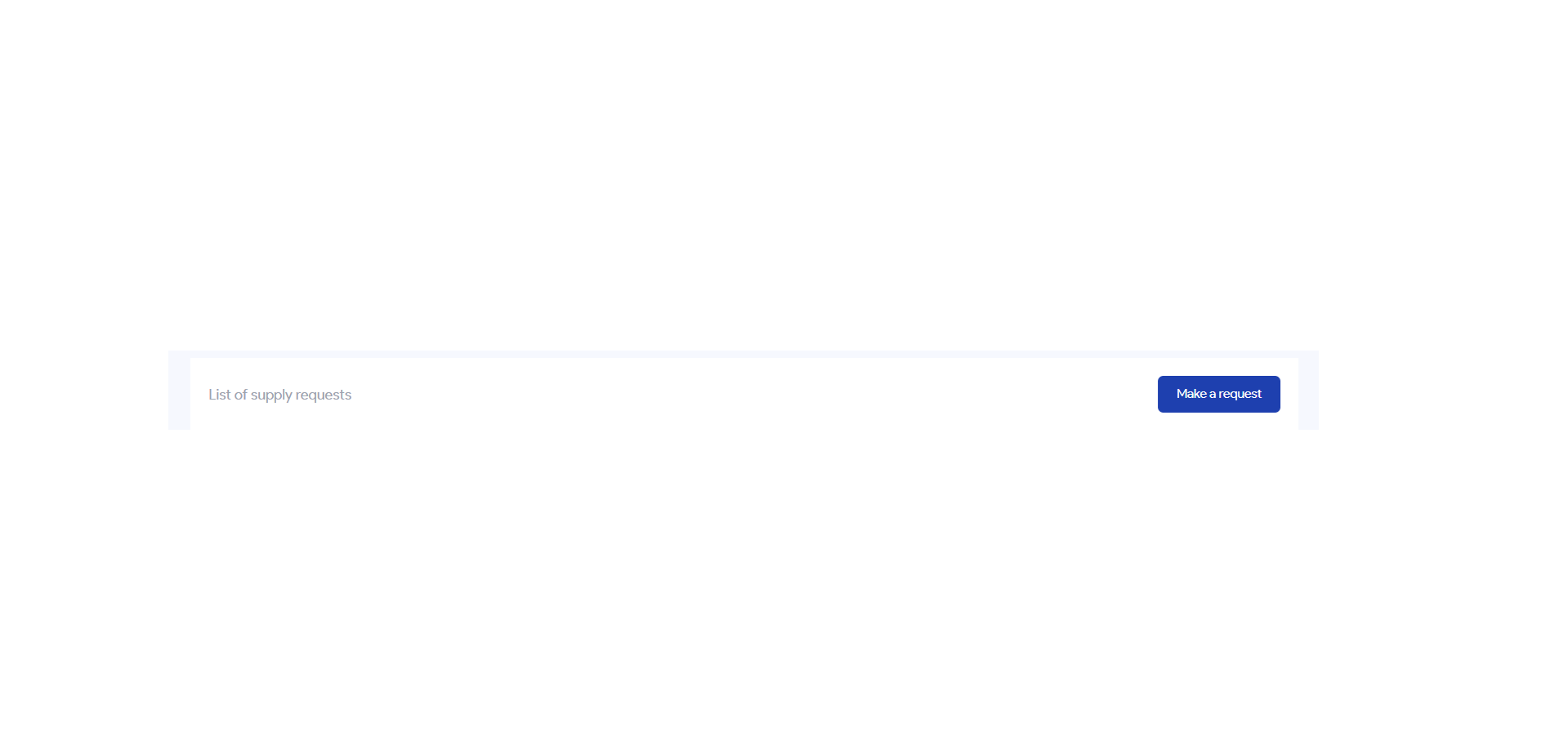
This will open a form where you can enter the details of your top-up request.
2.
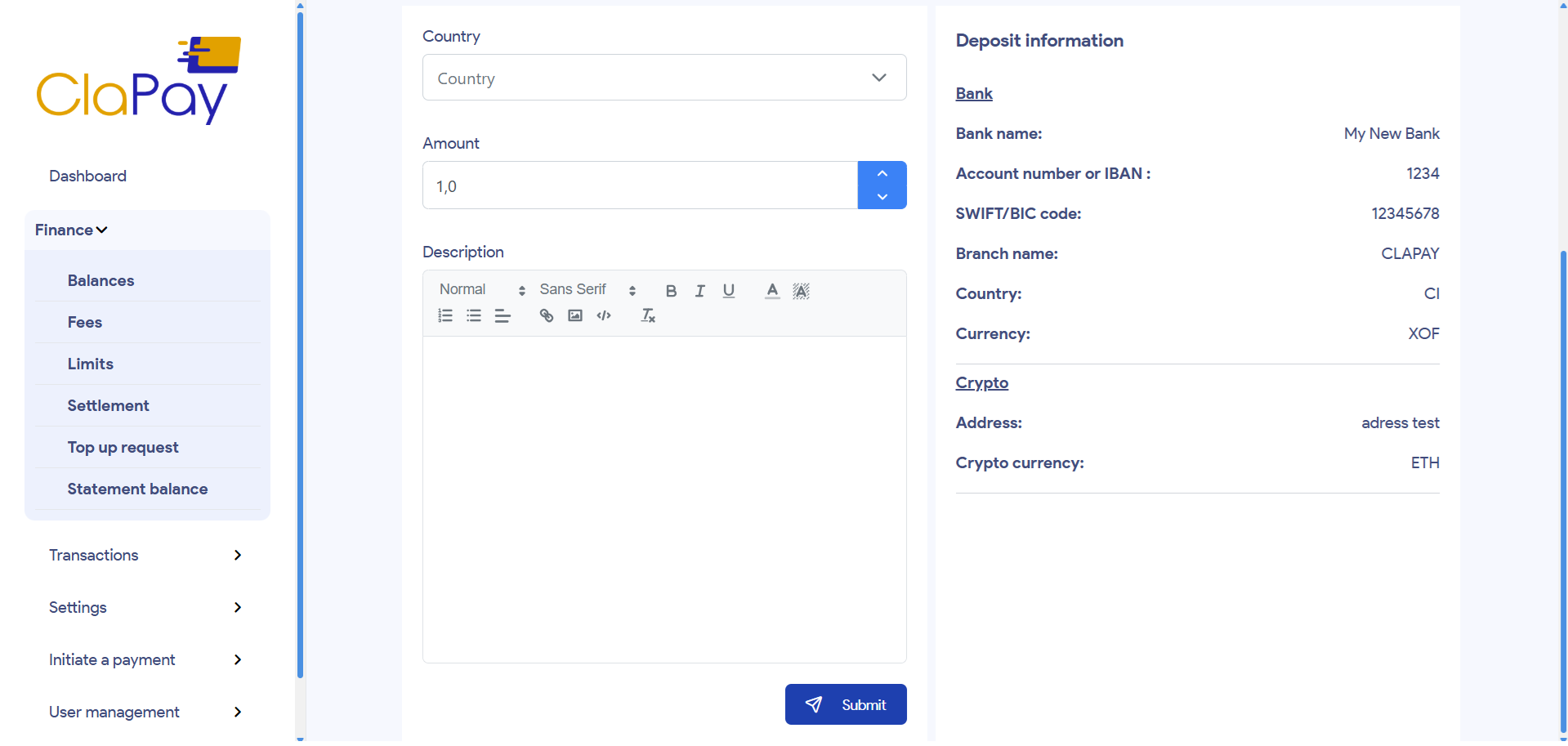
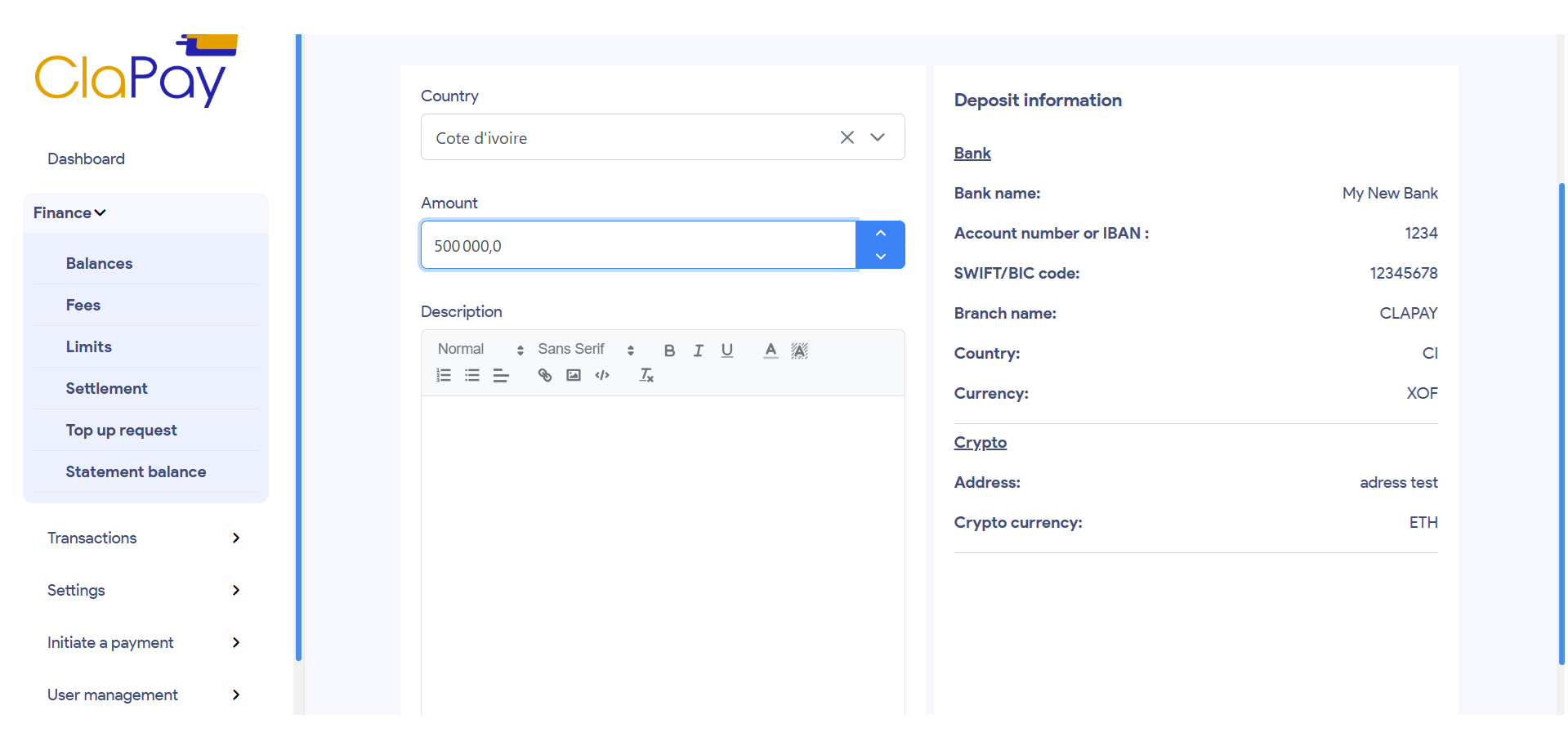
🌍 Select the Country
Choose the country for which you want to fund a local balance.
The selected country determines the currency and the relevant banking or crypto information.
3.
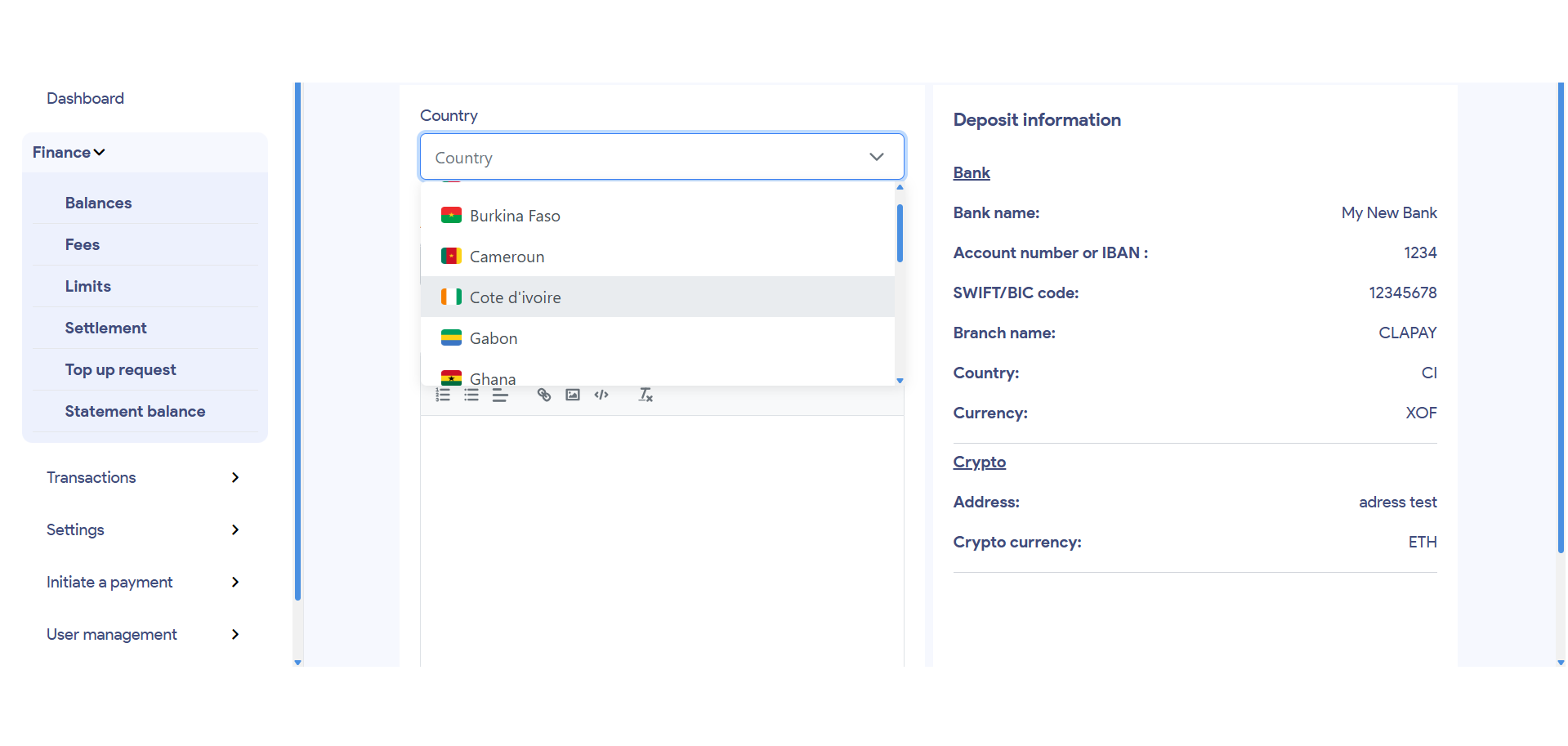
💰 Enter the Amount
Specify the exact amount you wish to deposit, in the local currency of the selected country.
4.
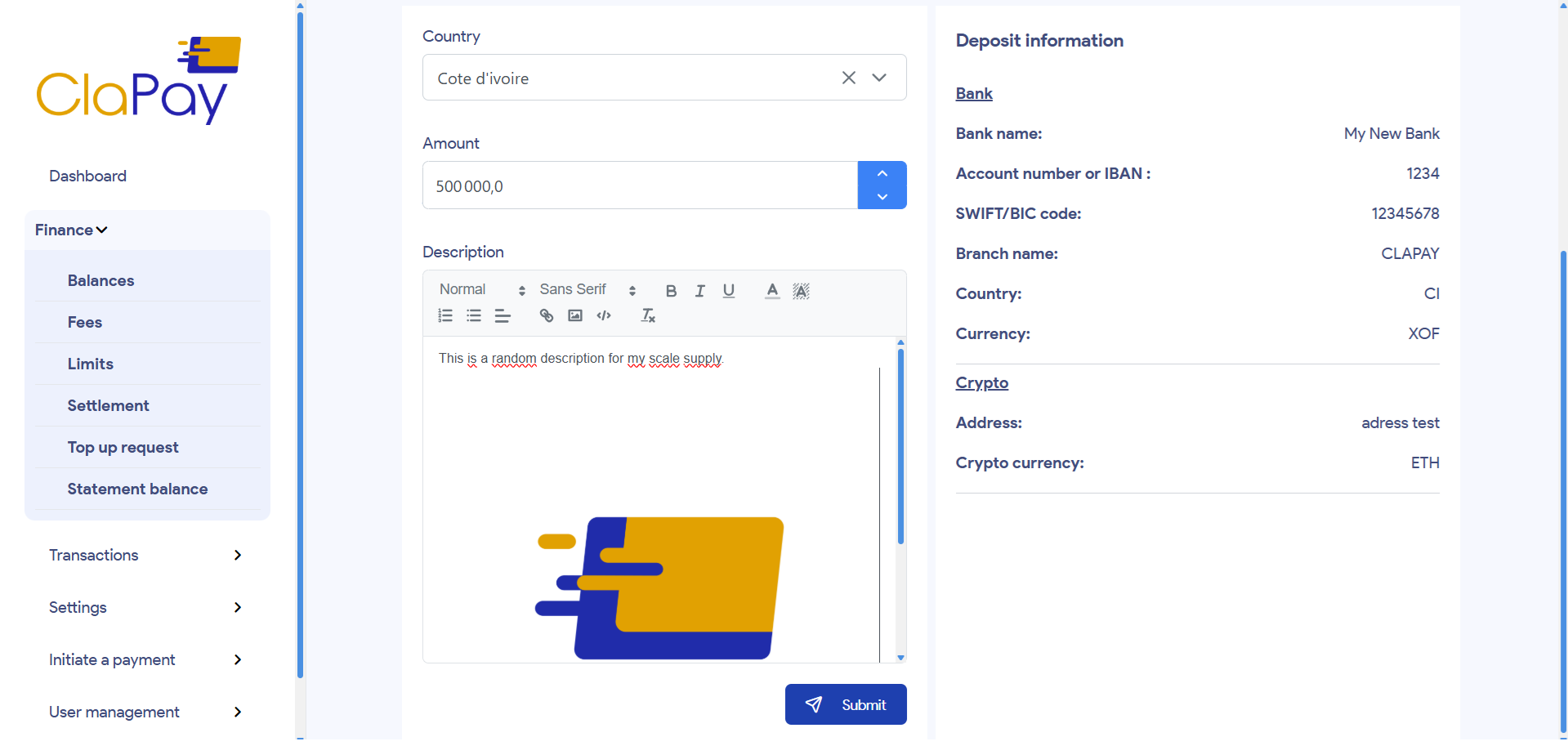
📝 Add a Description and Upload Proof of Transfer
In the Description field, include a reference or reason for the deposit.
Then upload a proof of transfer, depending on the selected method:
- 📄 Bank transfer: Upload the bank transfer receipt
- 📎 Crypto deposit: Upload a screenshot or transaction link
5.
📤 Submit the Request
Once all fields are completed and the proof is uploaded, click the Submit button to send your provisioning request to ClaPay for review.
6.
📋 Track the Status of Your Request
After submission, your request will appear in the list of top-up requests with one of the following statuses:
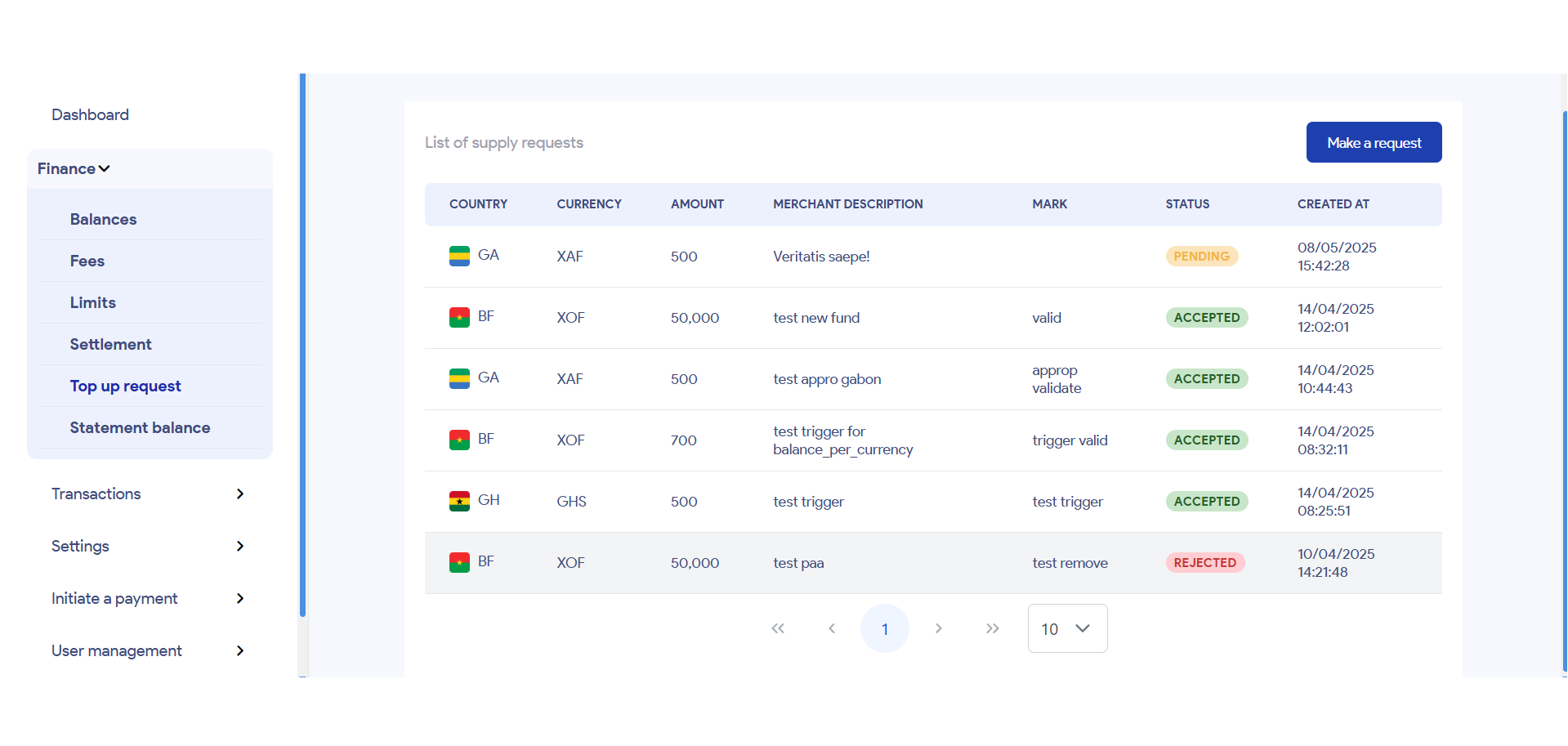
- ⏳ Pending: Your request is being reviewed by the ClaPay team.
- ✅ Accepted: Your request has been approved — the funds have been credited to your wallet.
- ❌ Rejected: Your request was denied, usually due to missing or invalid information. You may need to correct and resubmit it.
Bank Transfer
In this section, you can request a deposit into your virtual bank account using the method you previously selected: bank transfer, mobile money, or check.
To do so, you will be prompted to enter the required information in the pop-up window that appears, and then attach the corresponding transfer or payment receipts.
1.
🖱️ Open the Request Form
Click the "New request" button located at the top-right corner of the page.
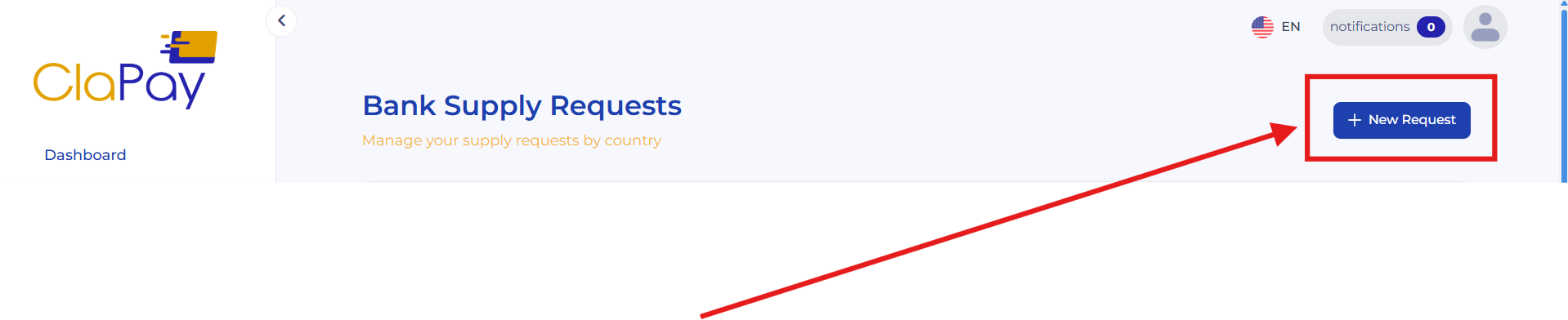
This will open a form where you can enter the details of your top-up request.
Payment Method (Mobile Money)
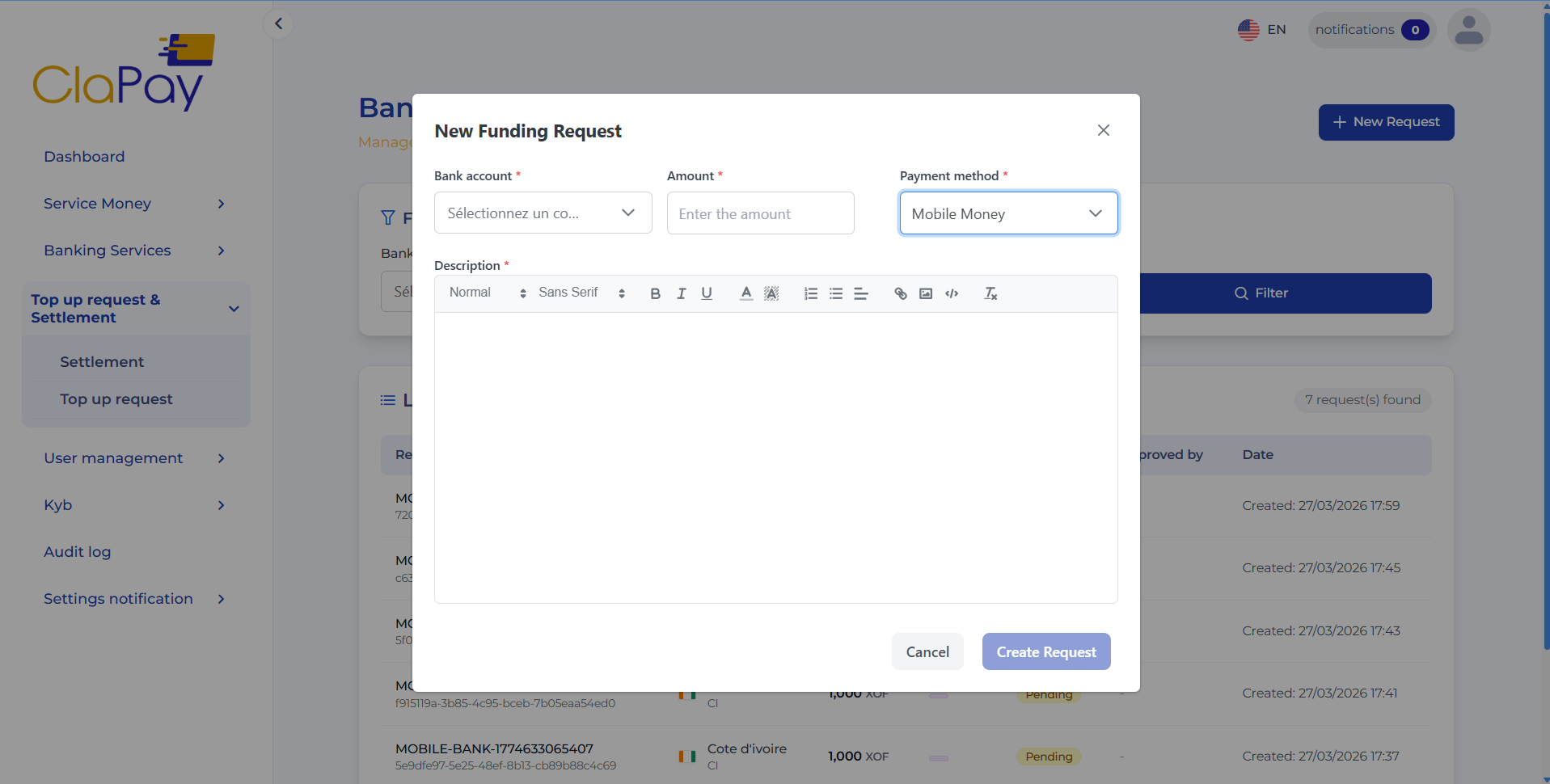
Payment Method (bank transfer)
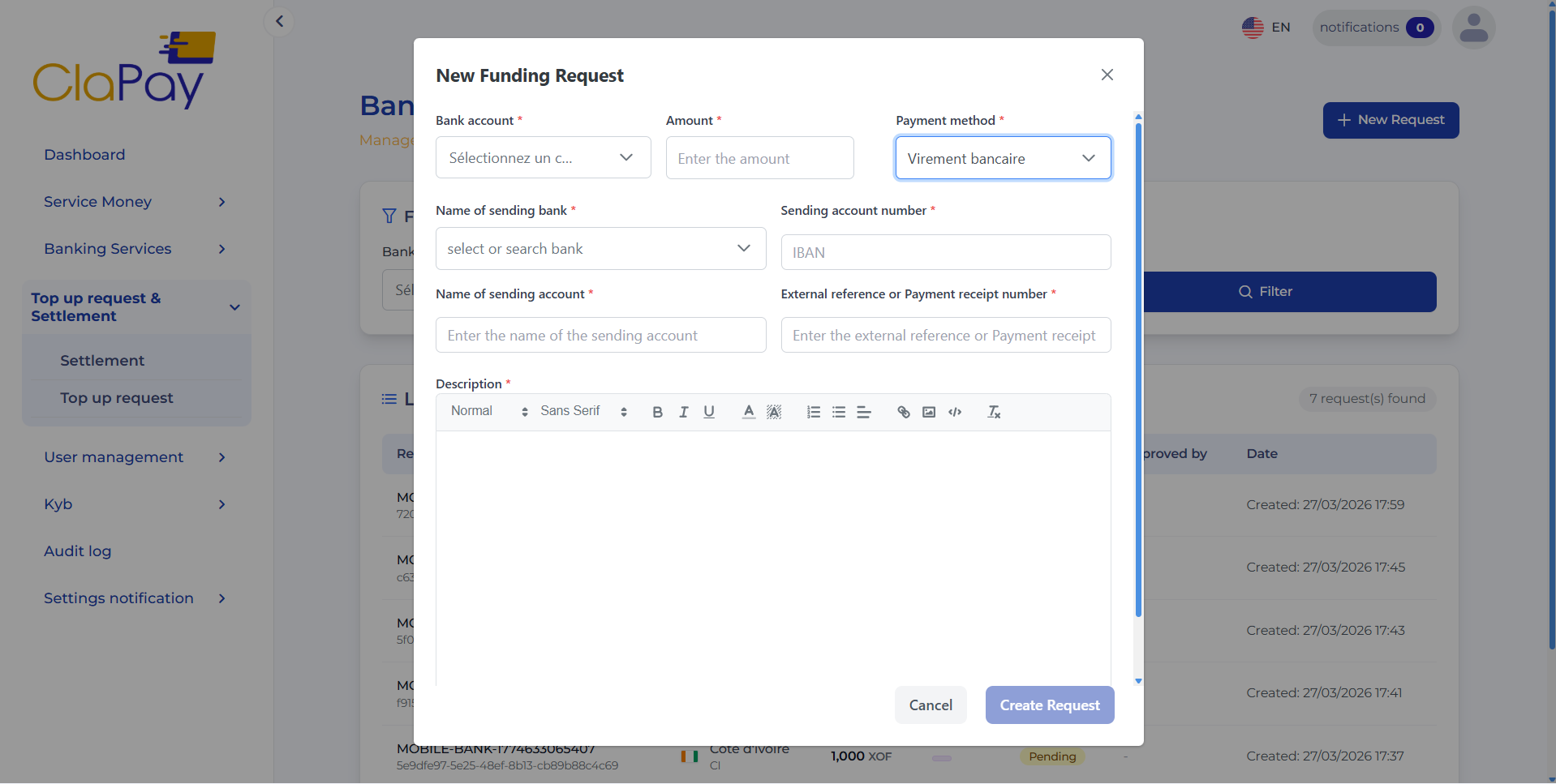
Payment Method (check)
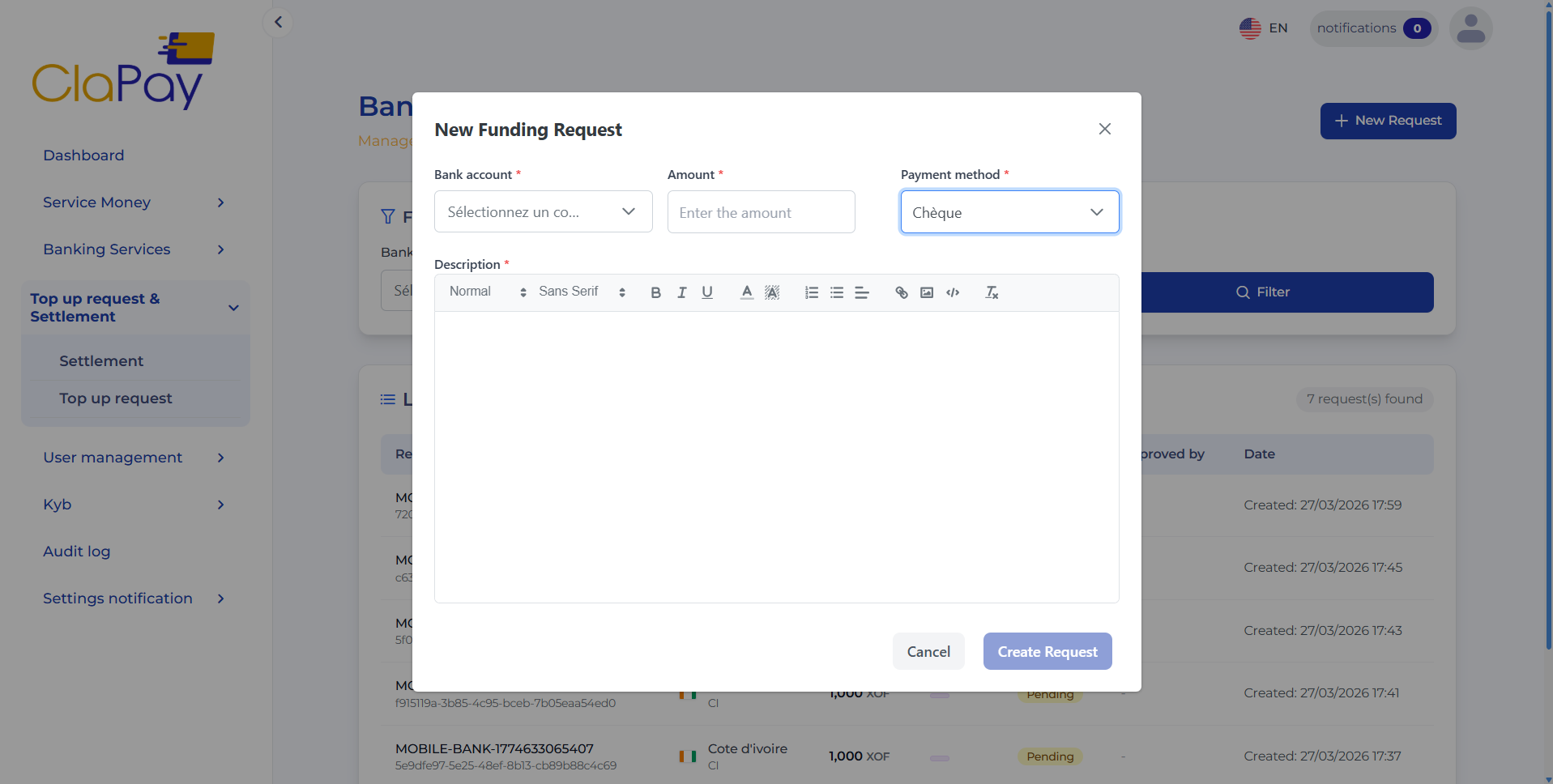
2.
🌍 Select the virtual bank account
Choose the virtual bank account you want to fund.
The selected account determines the currency and the relevant banking information.
3.
💰 Enter the Amount
Specify the exact amount you wish to deposit, in the currency of the selected virtual bank account.
4.
📝 Add a Description and Upload Proof of Transfer
For bank transfers, you must provide the other required information :
-
Name of sending bank : the name of the bank from which you are transferring the funds.
-
Sending account number : the account number from which the funds are being transferred.
-
Name of sending account : the name associated with the sending account.
-
External reference or payment receipt number : a reference number or receipt from the transfer, which helps in tracking and verifying the transaction.
5.
📤 Submit the Request
Once all fields are completed and the proof is uploaded, click the create request button to send your provisioning request to ClaPay for review.
6.
📋 Track the Status of Your Request
After submission, your request will appear in the list of top-up requests with one of the following statuses:
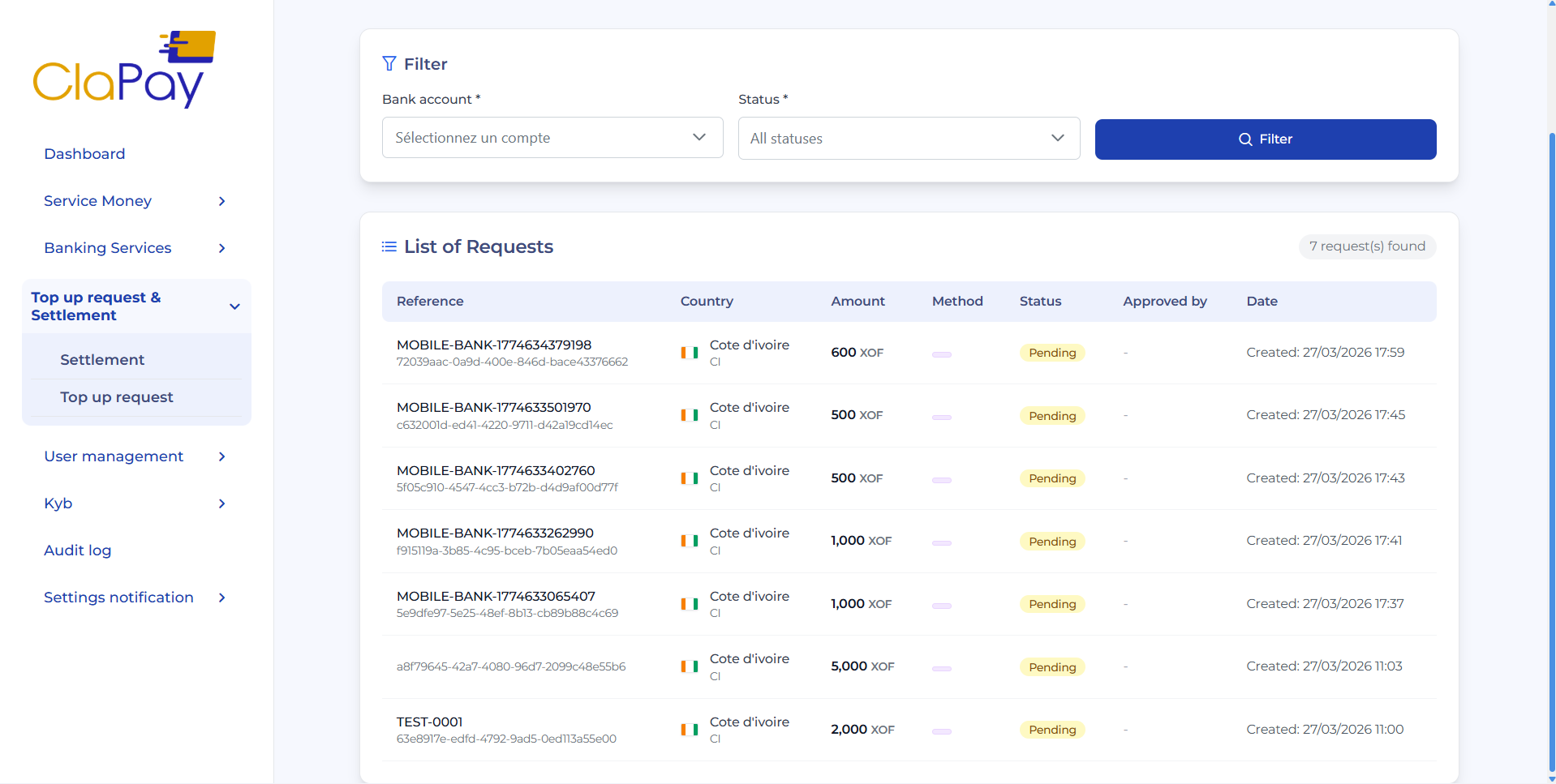
- ⏳ Pending: Your request is being reviewed by the ClaPay team.
- ✅ Accepted: Your request has been approved — the funds have been credited to your virtual bank account.
- ❌ Rejected: Your request was denied, usually due to missing or invalid information. You may need to correct and resubmit it.
Mobile to Bank
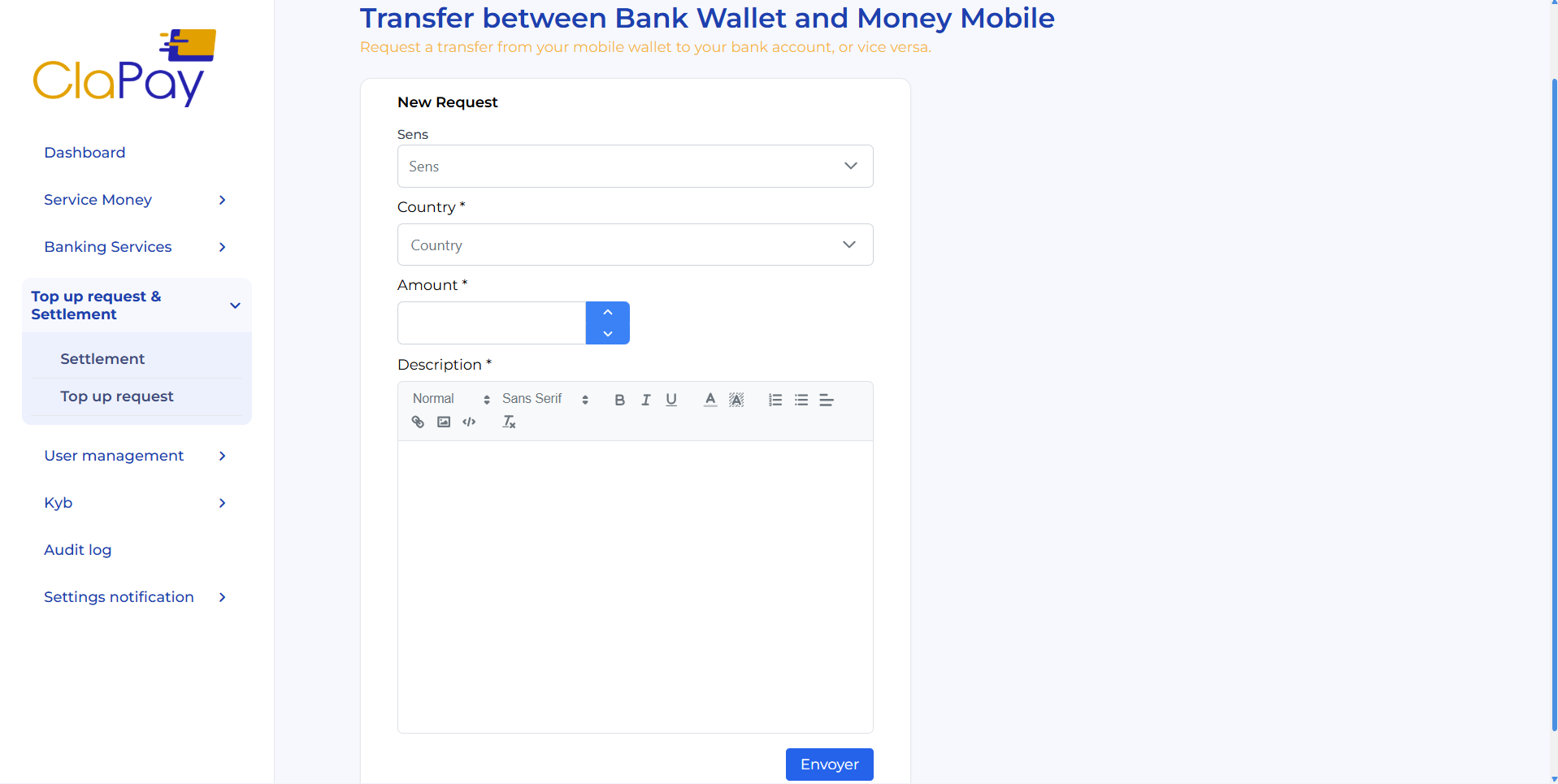
Request a funds transfer between your mobile wallet and your bank account in either direction—from the mobile wallet to the bank account or vice versa.
1.
↔️ Select Transfer Direction
Choose the direction of the transfer:
-
📱 Mobile Money -> Bank Wallet: Transfer funds from your mobile wallet to your bank account.
-
🏦 Bank Wallet -> Mobile Money: Transfer funds from your bank account to your mobile wallet.
2.
🌍 Select the Country
Choose the country for which you want to fund a local balance.
3.
💰 Enter the Amount
Specify the exact amount you wish to transfer, in the local currency of the selected country.
4.
📝 Add a Description
In the Description field, include a reference or reason for the transfer.
5.
📤 Submit the Request
Once all fields are completed, click the Submit button to send your transfer request.
Was this page helpful?